
Importing a curriculum
Import any curriculum into Homeschool Planner in minutes. Three paths — paste a table of contents, upload a CSV, or photograph the TOC pages — and let smart import build the lesson plan.
Most curricula come with a fixed lesson order — Saxon Math 5/4 has 120 lessons, The Good and the Beautiful 3 has 4 units, All About Reading Level 1 has 49 lessons. Typing them in by hand is the slow path. Smart import in Homeschool Planner reads a pasted table of contents, a CSV, or phone photos and builds the sequence in one pass. It’s the difference between an hour of typing and a minute of pasting.
At a glance
- Where it lives: inside Add resource (or Edit) → Lesson plan → Smart import lessons
- What it does: turns a pasted TOC, CSV, or phone photos into a lesson list
- Best for: any curriculum with more than 20 lessons
- Skip if: the curriculum has fewer than 20 lessons (manual entry is faster) or no fixed sequence (use lesson count instead)
Where to find it
Smart import lives inside the Add resource form (or Edit for an existing material). Open Settings → Materials → + Add resource and scroll to Lesson plan. Click Smart import lessons. The import dialog opens.
You can also import after the fact — open any existing material, scroll to lesson plan, and the same Smart import button is there. So if you buy a curriculum mid-year and want to add it later, you don’t have to recreate the material from scratch.
The three paths
The import dialog has three tabs at the top — Paste text, CSV, Photo. Pick the one that matches what you have.
Paste text
The fastest path. Copy a table of contents from the publisher’s website, a Google Doc, or a ChatGPT response — paste it into the box, click Parse →, and the planner extracts the lesson list.
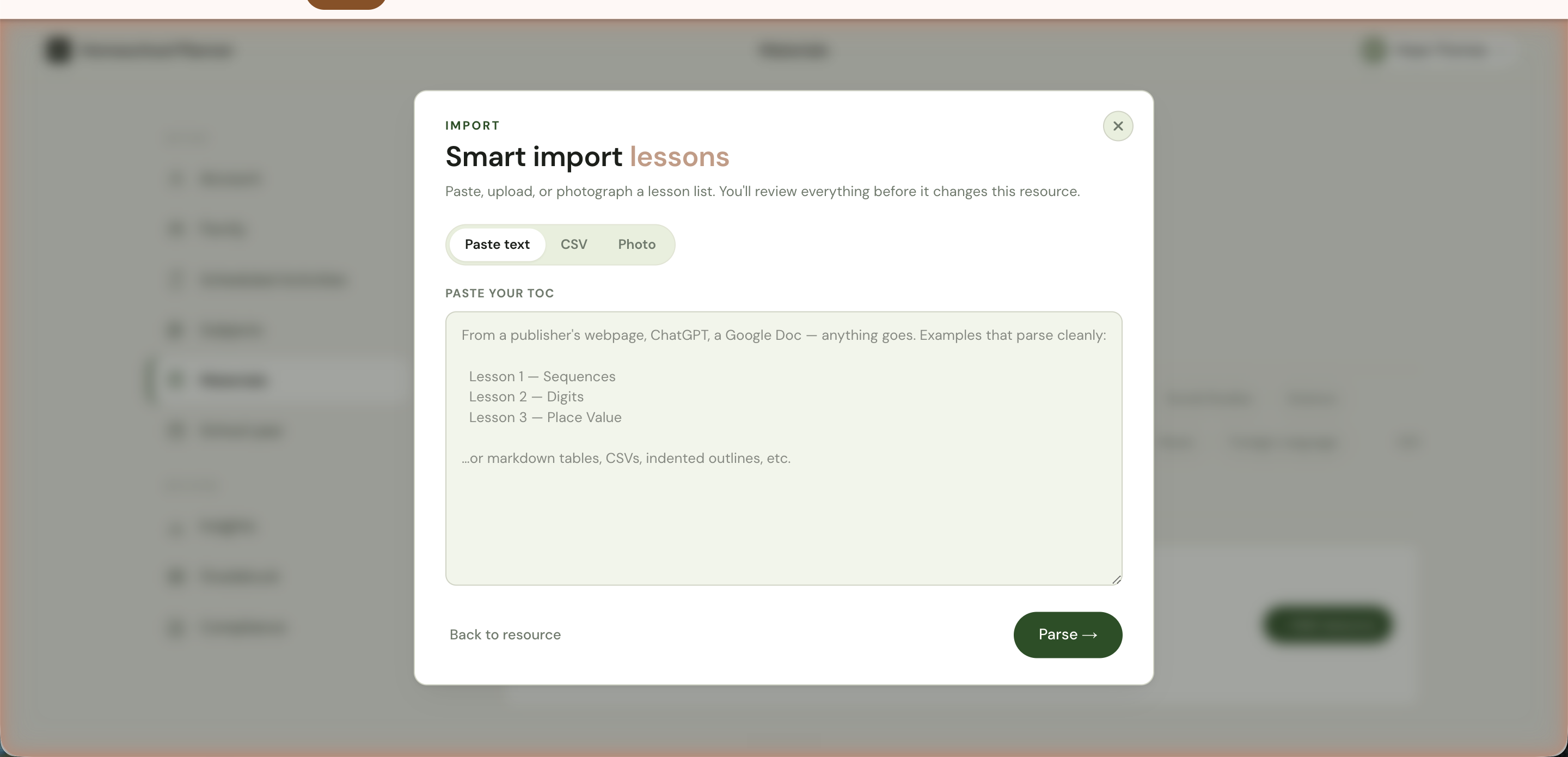
What works:
- A clean numbered list (
Lesson 1 — Title) - A markdown table with a header row
- An indented outline (units, chapters, lessons)
- A messy mix — Homeschool Planner’s smart import is forgiving and handles most formats from publisher websites
The placeholder in the box shows the cleanest pattern. You don’t have to match it; the planner works out the structure from whatever you paste.
CSV
The right path if you already have a structured file (an export from Trello, a Notion database, a homemade spreadsheet, a tracker you built in years past).
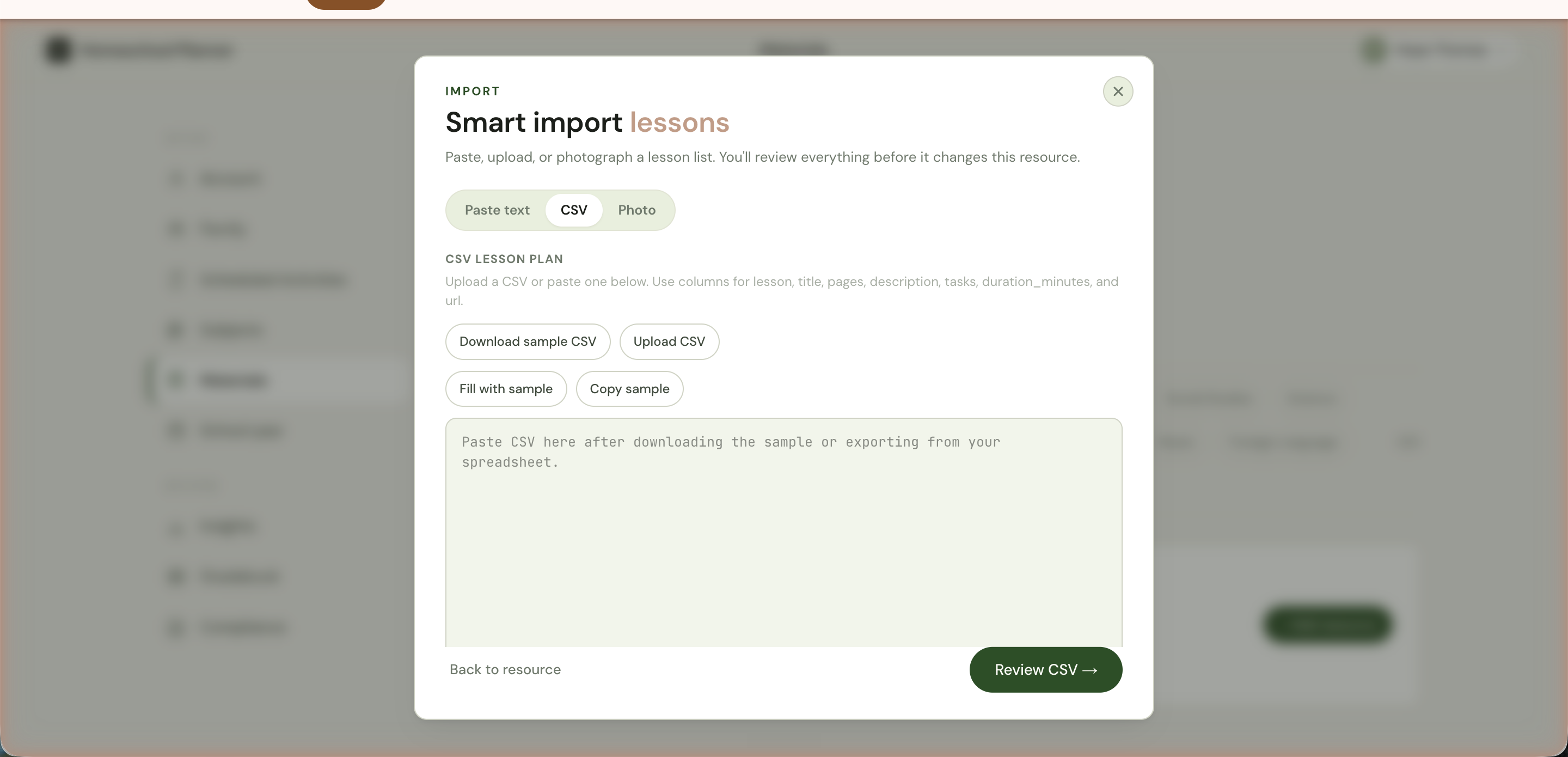
The expected columns are: lesson, title, pages, description, tasks, duration_minutes, url. Only title is required; the rest fill in extra detail per lesson.
The buttons help you set up:
- Download sample CSV — gets a file with the exact columns and a header row, ready to fill in
- Upload CSV — picks a file from disk
- Fill with sample — drops a sample into the textarea so you can see the format inline
- Copy sample — copies the sample to clipboard for editing in your own spreadsheet
Click Review CSV → to validate and proceed.
CSV is most useful for parents transitioning from another homeschool planner that exports CSV (HSP, Homeschool Tracker, Time4Learning), or for parents who keep their lesson tracker in Google Sheets and want to pull it into the planner.
Photo
For physical curricula whose TOC is on paper. Snap a phone photo of each TOC page, upload them in order, and Homeschool Planner reads the whole multi-page list as one continuous sequence.
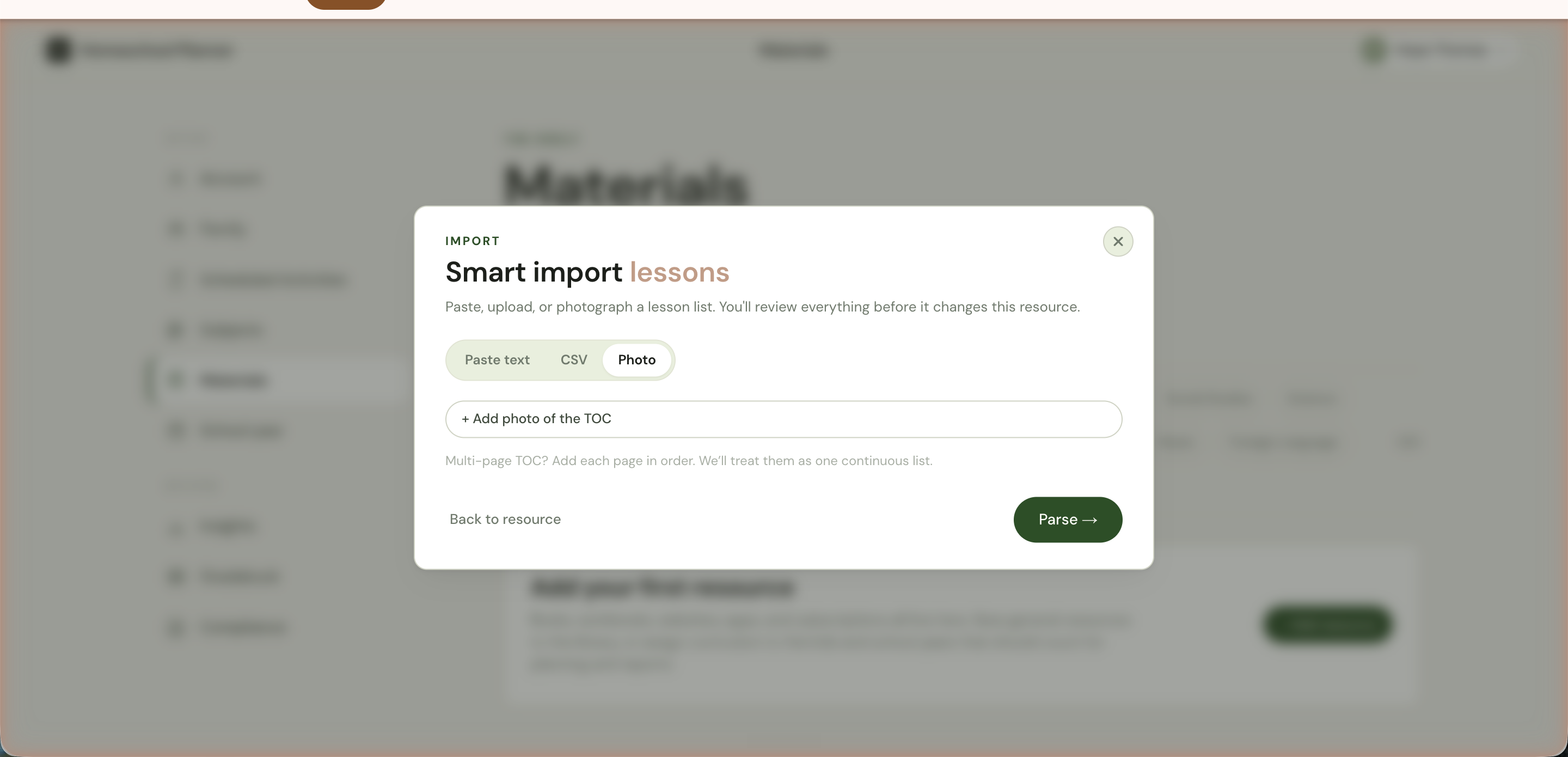
Tips for clean photos:
- Lay the book flat or use a phone holder so the page isn’t curving. A curved page makes the OCR misread some letters.
- Even lighting — overhead light beats mixed shadow. Don’t shoot in late-afternoon window light.
- Each page in order. Multi-page TOCs are stitched into one list, so the order you upload matters.
- Two-column TOCs are fine. A single page with two columns gets read as one — don’t try to crop it into two photos.
- Avoid glare. Fluorescent overhead lights can cast a glare strip across the page. Tilt the book slightly to dodge it.
Reviewing the import
After Parse → (or Review CSV → in CSV mode), the planner shows what it extracted before it commits. Each lesson becomes one row you can:
- Edit (rename, change duration, add notes)
- Reorder (drag the rows up or down)
- Delete (drop a chapter you’re not using)
- Add (a row the import missed)
Nothing is saved until you confirm. Save writes the lessons to the material; Cancel throws the import away.
What you can do with the lessons
Once a lesson plan is on a material, the planner uses it for:
- Per-lesson check-off — when you log work on a scheduled activity tied to that material, you can pick the specific lesson done
- Progress tracking — Lesson 47 of 120 on the material card. The week and day views can show next-lesson hints
- Compliance hour estimates — if you set
duration_minutesper lesson (CSV path), the gradebook totals weekly minutes from completed lessons
A material without lessons still works — you just lose the per-lesson granularity. Some parents skip the import entirely for short curricula and check off the material as a whole.
Updating later
Re-running smart import on a material with an existing lesson plan asks before overwriting. You can also edit lessons directly from the material card without re-importing — useful when the publisher releases an addendum, you skip a chapter, or you decide to compress two short lessons into one.
A typical mid-year edit: realize that lessons 30-32 are review and you don’t want them counting separately; merge into one lesson titled “Lessons 30-32 — Review” and let the rest stay numbered.
Curricula that work especially well
Some curricula work particularly well with smart import because their TOCs are structured cleanly:
- Saxon Math — numbered lessons (1 through ~120), one per session
- All About Reading / Spelling — numbered lessons with consistent format
- The Good and the Beautiful — chapters broken into lessons
- Memoria Press — clean unit-based structure
Some curricula take more cleanup because the TOC is non-linear or sparse:
- Charlotte Mason curricula — book lists rather than lesson sequences
- Unit studies — overlapping topics rather than ordered lessons
- Notebooking-based — open-ended rather than fixed
For non-linear curricula, the lesson-count-only path (just enter a target count) is often a better fit than smart import.
Common questions
What about a curriculum that combines multiple subjects? Tag it to the dominant subject and use the activity title to specify what each lesson covers. Reports group by subject; titles carry the detail.
Can I import a year of homeschool sessions from a tracker I’ve been keeping? Not directly, but email [email protected] — we can do CSV imports of historical sessions manually while a self-serve session-import tool is built.
What if my pasted TOC has Roman numerals or letter-prefix sections (Section A, B, C)? Smart import handles these. The first column of each row is treated as a lesson identifier; whether it’s a number, a letter, or “Lesson 47” doesn’t matter.