
Voice capture
Plan and log activities in Homeschool Planner by speaking. The app pulls the child, subject, duration, and time from a single sentence.
Voice capture lets you talk to Homeschool Planner instead of typing — useful when the morning is loud, your hands are full, and you don’t want to fight with a form. The planner pulls the child, the subject, the duration, and the time of day out of a single sentence and drops them into the same review screen you’d see from a typed activity, so you can confirm or fix before it saves.
At a glance
- Where it lives: any Add activity dialog, plus the Voice button on a session’s note field
- What it does: turns one spoken sentence into a planned or logged session
- Best for: noisy mornings, hands-full moments, logging what already happened
- Skip if: you prefer typing — the form path always works and is sometimes faster
Plan an activity by voice
From any Add activity entry point — the dashed button at the bottom of the day view, an empty week-grid cell, or the keyboard shortcut A — the dialog opens with two paths. Say the plan is the voice path; Type the details is the form.
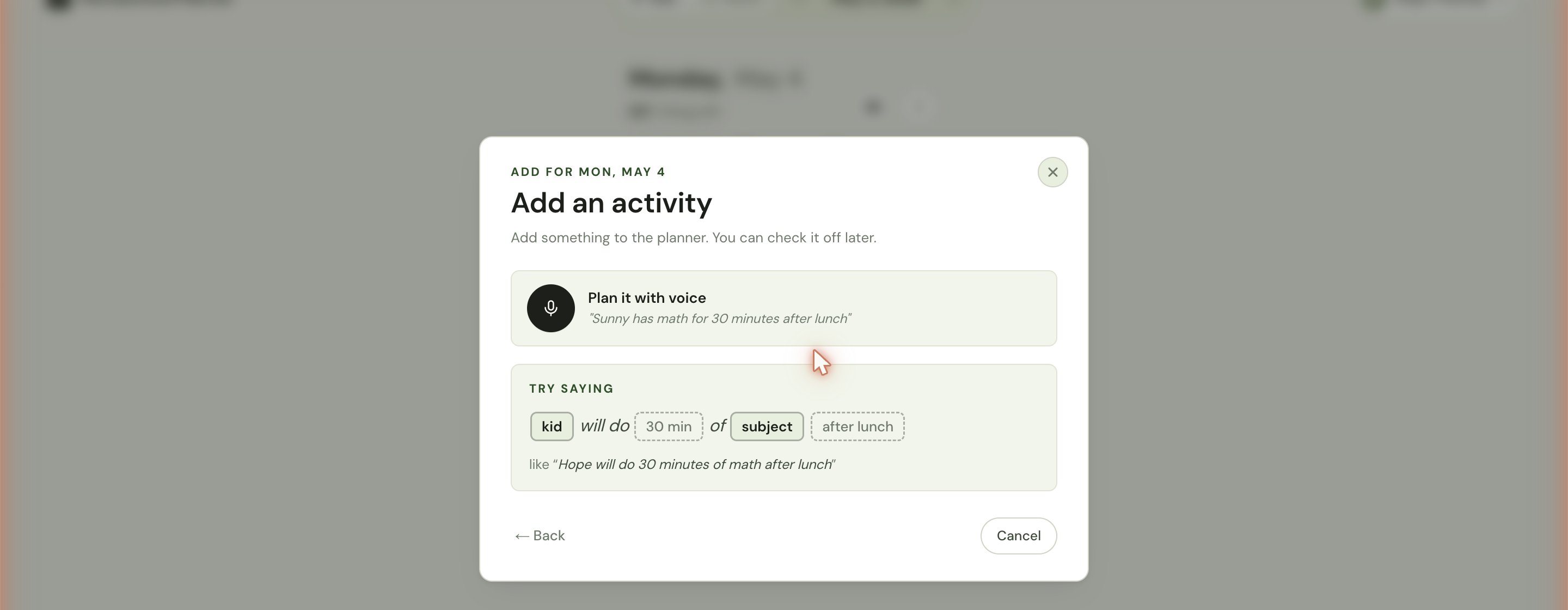
Click Plan it with voice to start recording. The example sentence under the mic is the format the planner reads best:
child name will do duration of subject time
For example: “Hope will do 30 minutes of math after lunch.” The planner extracts:
- The child (Hope)
- The subject (Math)
- The duration (30 minutes)
- The time of day (after lunch → afternoon)
- The implicit title (Math)
Once it finishes, you see the same review screen as a typed activity — confirm or edit any field, then save. If something came through wrong, the Back link returns to the dialog so you can switch to the typed form instead.
What works well
The planner reads natural sentences best when they have a clear shape:
- One child, one subject. “Hope reads for 20 minutes.” Easy.
- Family activities. “Family read-aloud after lunch for 30 minutes.” Tagged to the family lane.
- Common time markers. Morning, after lunch, before dinner, at 9, at 2. All work.
- Standard subject names. Math, English, science, art, PE, music, foreign language all map cleanly.
What confuses it
A few things tend to need correction on the review screen:
- Two activities in one breath. “Hope does math then science” gets parsed as one block. Capture each one separately.
- Subjects outside the eleven. “Hope does Latin” tags as Other because Latin isn’t on the standard list. Easy to rename to Latin and keep the Other tag, or move it to Foreign Language on the review screen.
- Mumbled durations. “Fifty” and “fifteen” sound similar. The review screen lets you fix the number before saving.
- Background noise. A loud sibling or a humming dishwasher can confuse the transcription. Move closer to the laptop or wait for a quiet moment.
Voice notes on a session
The second voice surface is on the Note field of any open session. Click any block in the day or week view to open the activity panel; on the right of the Note label is a Voice button.
The voice-note path is simpler than the planning path: tap Voice, speak, the planner transcribes the audio into the note textarea. You can edit the result if a word came through wrong. Common uses:
- “Hope finished lessons 12 and 13 today, struggled with long division.”
- “Read chapters 4 and 5 out loud — Matt asked great questions about the setting.”
- “Field trip to the aquarium counted for science today, 90 minutes.”
The note shows up on the session card afterwards as a small note indicator, and the full text is visible whenever you reopen the panel.
Microphone permission
Both voice paths use your browser’s microphone. The first time you click Plan it with voice or Voice, the browser asks for microphone permission — you grant it once per browser per device, and Homeschool Planner remembers your choice.
If you accidentally denied permission and need to re-grant it, look for a small microphone icon on the left side of the address bar (Chrome, Edge) or in the site settings (Safari). Click it and choose to allow the microphone for my.homeschoolplannerapp.com.
The audio gets sent to a transcription service, the text comes back, and the audio file is discarded — Homeschool Planner doesn’t keep voice recordings on your account. See data and privacy for details.
When voice isn’t right for you
Voice capture is optional. If you’d rather not use it:
- Type the details in the Add activity dialog is the typed alternative for both planning and logging.
- The note textarea on every session always accepts typed input.
- If you find the parser frustrating, the Back link is one click away from each voice screen.
A typed sentence and a spoken one save the same session — the data is identical whether you talk or type.