
Your account
Manage your Homeschool Planner account — change your name, change the email you sign in with, or delete the account permanently.
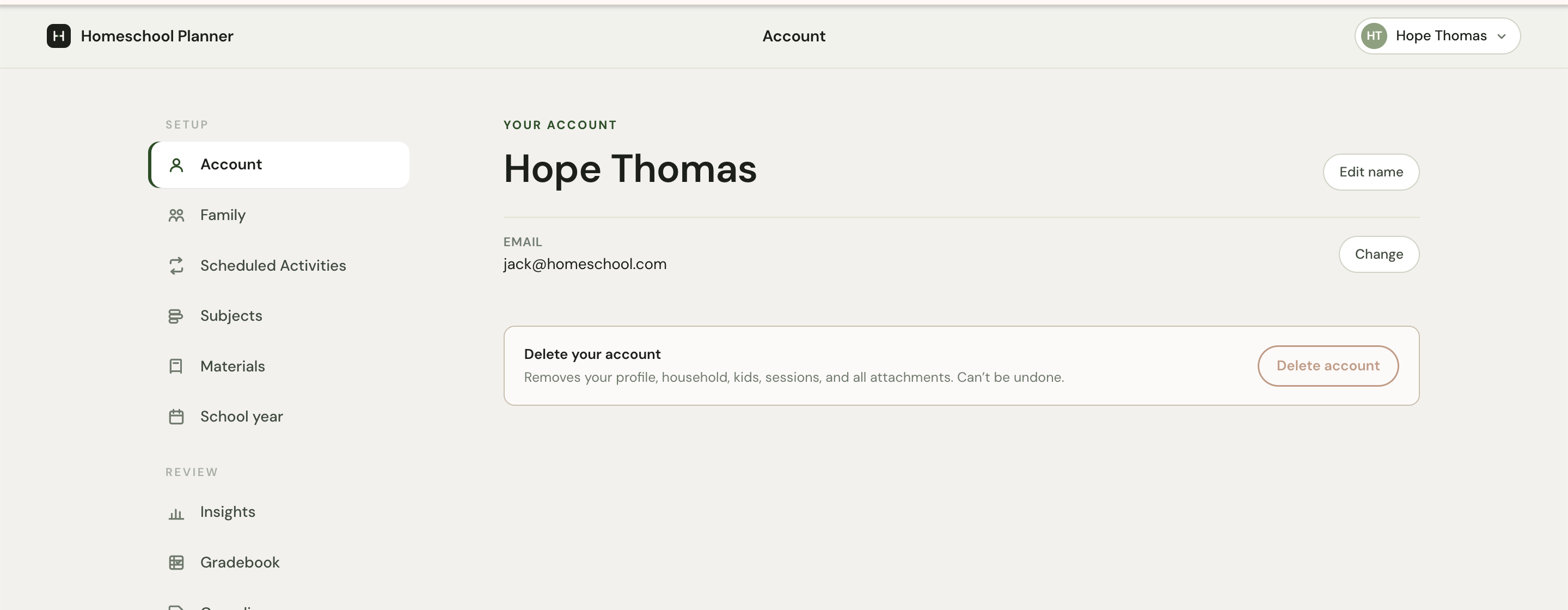
The Account page holds your name, the email you sign in with, and the keys to delete the whole account if you decide to step away. It’s intentionally short — Homeschool Planner doesn’t need a long list of preferences, just enough to know who you are and how to reach you.
At a glance
- Where it lives: Settings → Account
- What it does: lets you change your name, change your sign-in email, or delete the account
- Best for: updating an email after a switch, fixing a typo’d name
- Skip if: your name and email are already correct — most parents only visit this page once
Your name
The big heading at the top is the name you set during the welcome flow. Click the rename control next to it to open a small inline editor — first name and last name in two fields. Save and the new name reflects right away on your account chip in the top right of the planner, on any printed sheets where the parent name appears, and in auto-generated reports later.
This name doesn’t have to match anyone’s official records. Use a nickname, your children’s shared way of addressing you, or a maiden name if that’s what you’d prefer to see in the corner of the planner every day.
Your email
The Email field below your name is the address that receives sign-in links. To change it, click the change control on the right and enter the new address. Homeschool Planner sends a confirmation link to the new email; click that link in your inbox and the new address takes over.
Until you click the confirmation, the old email keeps working — so if you typo the new one, you can sign back in with the original and try again. Once confirmed, the old address is no longer associated with the account.
Delete the account
The card at the bottom is the destructive option. Removes your profile, household, children, sessions, and all attachments. Can’t be undone. The button is intentionally clay-coloured to read as a warning, and clicking it asks for confirmation before deleting anything.
Here’s exactly what gets removed:
- Your profile (name, email, avatar)
- The household record
- Every child you added
- Every session, scheduled activity, planned block, and logged work
- Every material you added (books, websites, apps, curricula)
- Every attachment uploaded to those records (photos, PDFs, links)
- Your subject settings and school-year configuration
There’s no soft-delete, no 30-day grace, no support tickets that can recover the data afterwards. Once it’s gone, it’s gone.
When you don’t need to delete
If you just need a break from homeschooling for a season or a year, signing out is enough. The data sits exactly as you left it until you sign back in. This is the right choice if:
- You’re moving and just don’t have time to homeschool right now
- One child enrolled in a school for a semester
- You’re exploring other tools and might come back
Deletion is for when you’re certain you’re done with the platform.
How sign-in works
Homeschool Planner uses email magic links instead of passwords. Each sign-in sends a single-use link to the inbox of whatever address is on the account. Click the link, you’re signed in. No password to remember, no password to lose, no password reset flow.
A few things worth knowing about magic-link sign-in:
- The link expires after a short window (typically 30 minutes). If you don’t use it in time, request another from the sign-in page.
- It’s single-use. If you click it and the page is slow, don’t refresh and re-click — request a new link instead.
- It only works in the same browser that requested it. If you ask for a link on your phone but try to open it on your laptop, sign-in won’t complete.
- Spam filters sometimes catch the email. If a link doesn’t show up in 60 seconds, check the spam folder, then mark the sender as a contact so future links land in your primary inbox.
If you ever lose access to the email itself (for example, you switch jobs and lose a work email you’d been using), email [email protected] from any address — we’ll verify identity and update the account email manually.