Logging completed work
Three ways to log completed work in Homeschool Planner — speak it, photograph the worksheet, or type the details. Learn the difference between planning ahead and recording what already happened.
Homeschool Planner separates two flows that look similar but mean different things — planning future work and logging what already happened. Most days you’ll mark planned blocks complete from the day view’s check circles. But when the children do something off-script — a spontaneous nature walk, an unexpected science experiment, a movie that turned into a history lesson — the Log what happened shortcut is faster than backfilling a planned block, and it captures the work at the right level of detail without you having to fight the planner’s structure.
At a glance
- Where it lives: Log what happened link at the bottom of the day view (next to the green + Add activity button)
- What it does: records work that already happened, with three input methods
- Best for: field trips, unexpected lessons, end-of-day reconciliation, building a paper trail
- Skip if: the work was planned and you’ve already checked it off
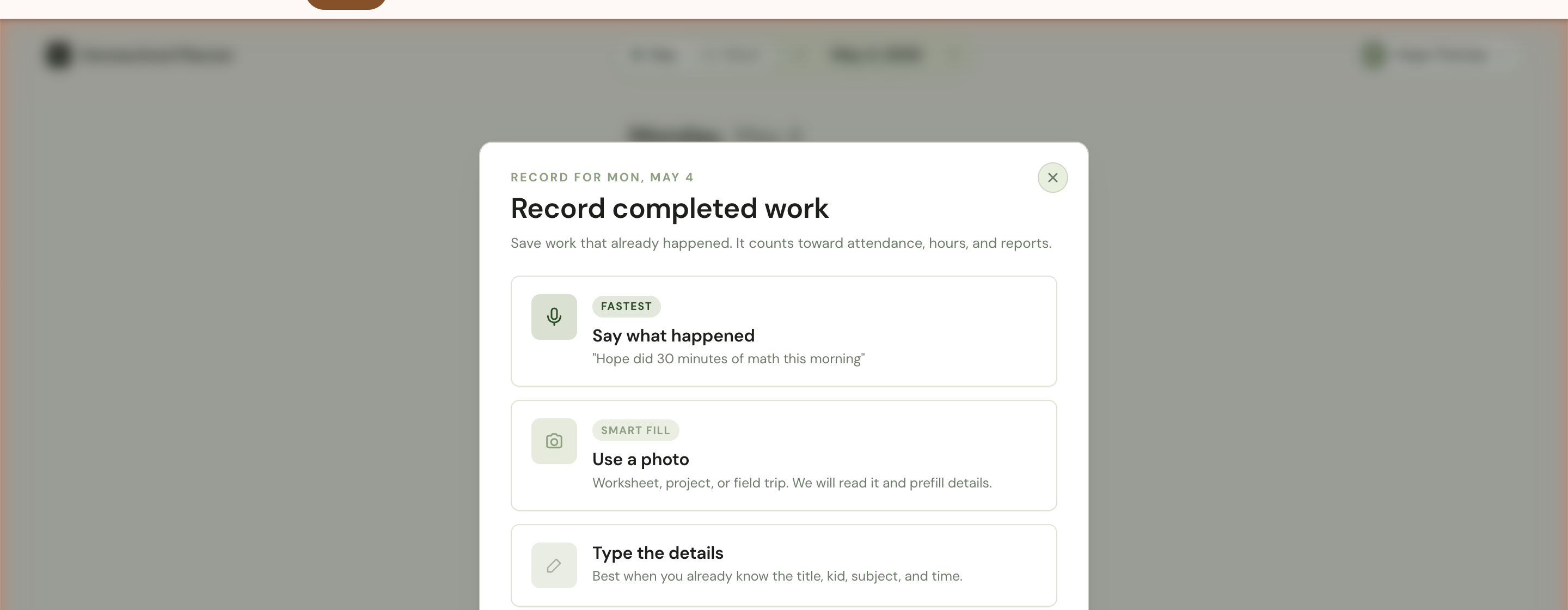
The dialog header reminds you which date you’re recording for. The lede sets the rules: Save work that already happened. It counts toward attendance, hours, and reports.
The three input paths
Say what happened (fastest)
Speak a sentence describing the work in past tense. “Hope did 30 minutes of math this morning.” The planner extracts the child, subject, duration, and time of day from your speech, and pre-fills a session record marked complete.
This is the same parser as the Plan it with voice path on Add an activity, but the verb is past tense. Say did and finished and spent — not will do — and the planner records as completed. You’ll see a review screen before the session saves so you can fix anything that came through wrong.
Use a photo (smart fill)
Take a photo of the worksheet, the page they finished, the project, or the field-trip ticket. The planner reads the image and pre-fills:
- The subject (math worksheets get tagged Math, reading workbooks get tagged ELA, etc.)
- The title (visible page heading or curriculum name)
- The duration (a typical guess for that worksheet length, when it can tell)
- The child (asked if it can’t infer from the image)
You confirm or edit before save. The photo attaches to the session as an attachment so the original is on the record.
Type the details
The classic form. Title, child, subject, date, optional duration, optional time of day, optional notes. Faster than voice for parents who already know exactly what they’re recording and prefer the keyboard. Same fields as the Type the details path on Add an activity, just defaulted to completed instead of pending.
Plan vs. log
The two flows answer different questions. Use this table to pick the right one:
| Question | + Add activity (Plan) | Log what happened |
|---|---|---|
| When | Future or today | After the fact |
| Default state | Pending | Completed |
| Photo input path | No | Yes |
| Voice prompt verb | will do | did |
| Best use case | Tomorrow’s lessons, reminders | Field trips, off-script work |
If you plan an activity and the children actually do it differently, you have two reasonable options:
- Open the planned block in the day view, edit fields to match what really happened, click Mark complete. This keeps your planned-vs-actual ratio honest.
- Skip the planned block (open it, change date or delete), then Log what happened for the actual session. Faster when the actual was something completely different.
There’s no right answer — pick whichever fits your sense of accuracy.
What gets recorded
Every logged session includes the same fields as a planned-then-completed session, which means logged work and planned work are indistinguishable on reports later. Both feed:
- Attendance counts for the day
- Hours per subject for the week, month, and year
- Per-child coverage — which subjects each child actually worked on
- The session timeline — the chronological list of everything that happened
The shape of each session is:
- A timestamp of when the work happened
- Which child or children it was for
- Which subject it counted under
- A title (e.g., Saxon Math Lesson 47)
- Optional duration in minutes
- Optional notes
- Optional attached photo or link
Once saved, a logged session looks identical to a planned session that was checked off. The day view shows it in the Today list with a checkmark; the week view’s progress bar includes it.
Backdating an entry
The Log what happened dialog defaults to whatever date the day view was on when you opened it. To log a session for a previous day, navigate to that date first using the day view’s chevrons (or the ← keyboard shortcut), then open Log what happened there. Whatever date is showing in the header becomes the session date.
There’s no time limit on backdating — you can log a session for any date inside the active school year. State-compliance reports will pick it up the next time you open them.
A few practical patterns:
- End-of-day catch-up. Sit down after the children are in bed, log the day’s two or three off-script things, mark planned blocks done. Five minutes; the next day’s planner is already accurate.
- Friday reconciliation. Some families don’t log retroactively at all during the week, then spend 15 minutes Friday afternoon catching up the whole week from memory. Less ideal for accuracy, fine for compliance.
- Trip days. A field-trip morning produces three or four logs in a row — Drive to museum (1 hr, social studies), Aquarium walkthrough (2 hr, science), Lunch and discussion (45 min, family). Log each one rather than one mega-block; the per-subject totals stay correct.
What you can’t do (yet)
A few features are on the way but not shipped:
- Bulk log. Logging the same activity for multiple children at once requires opening the dialog per child today. A multi-child log is on the wish list.
- Edit a logged session’s child after save. You can edit most fields, but moving a logged session from one child to another requires deleting and re-logging.
- Import logged sessions from a CSV. Useful for families switching from another planner mid-year. Email [email protected] if you need this — we can do it manually.