Materials and resources
Manage books, websites, apps, subscriptions, and curricula in Homeschool Planner. Tag each material to a subject, child, and school year so reports stay tidy.
Materials in Homeschool Planner are everything you teach out of — books, workbooks, websites, apps, subscriptions, library lists, supplies, full curricula. The shelf lives at Settings → Materials. Adding a material once and tagging it (subject, which children, which year) means it shows up correctly on every planner view and rolls up cleanly on state-compliance reports. Most parents add materials at the start of the year as books arrive in the mail, then occasionally during the year when they pick up a new resource at a co-op or library.
At a glance
- Where it lives: Settings → Materials
- What it does: holds your curriculum, books, websites, apps, supplies — tagged to children and years
- Best for: start-of-year setup, mid-year additions, building a paper trail of what you taught from
- Skip if: you’re tracking a single workbook informally — the planner works fine without materials
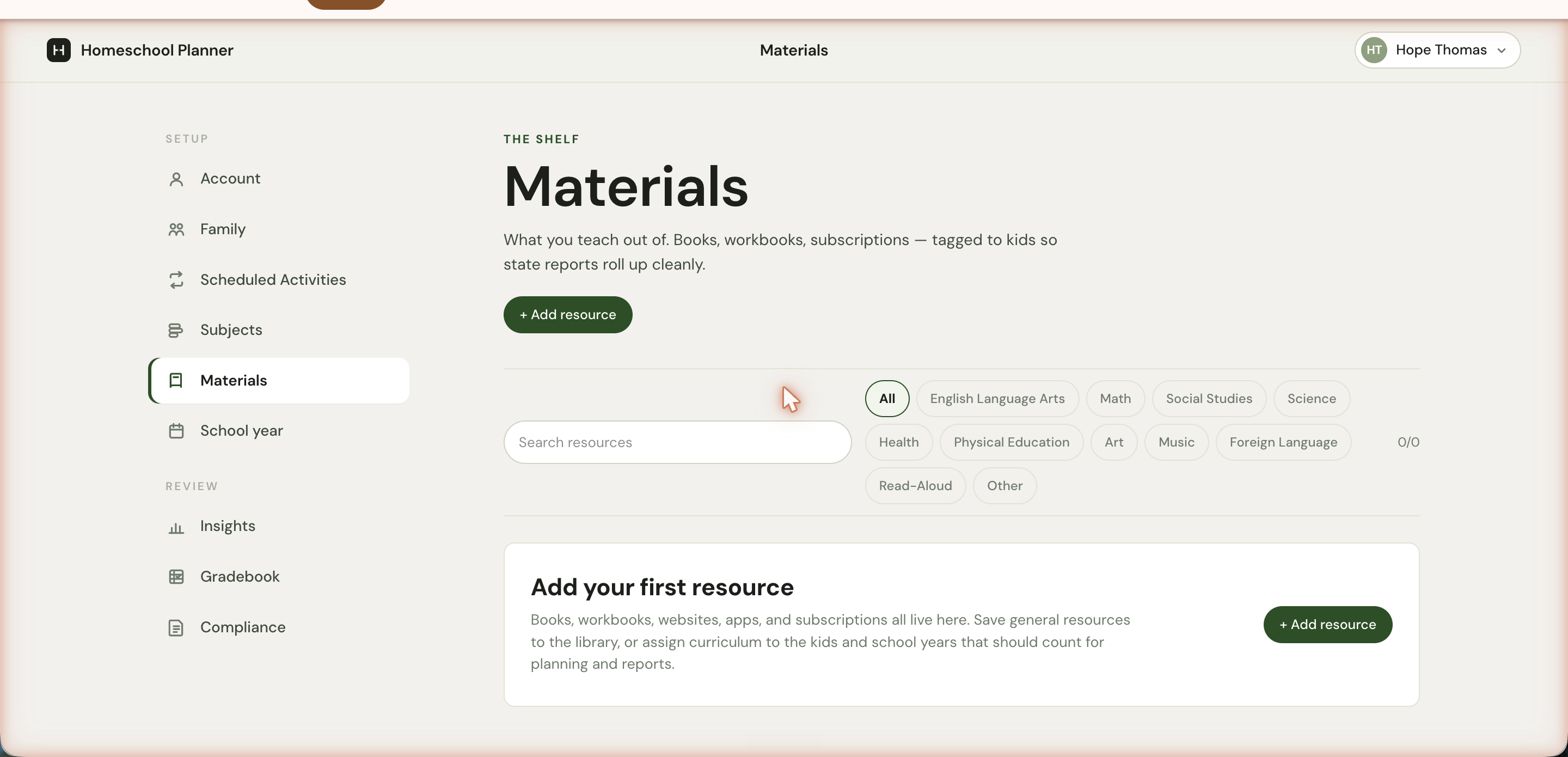
The header bar has a search box on the left and subject chips on the right. The counter at the right (0/0, 3/12) shows visible-of-total based on the active filter. Click any subject chip to narrow; click All to clear the filter.
Adding a resource
The + Add resource button (top-right or in the empty state) opens the Add resource dialog.
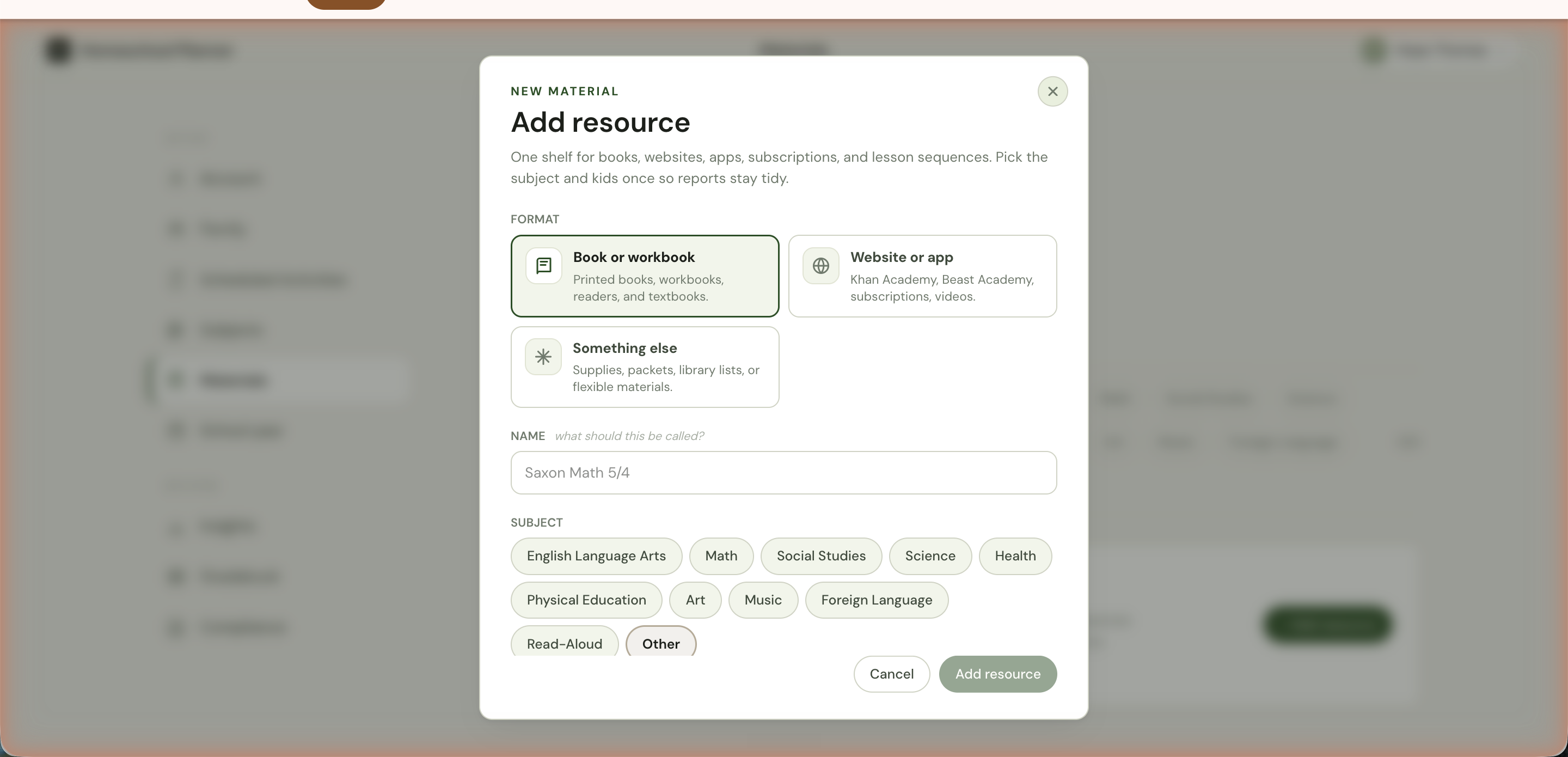
Format
Three options:
- Book or workbook — printed books, workbooks, readers, textbooks. Default and most common.
- Website or app — Khan Academy, Beast Academy, subscriptions, video courses, ebooks. Includes a URL field for the login or homepage.
- Something else — supplies, packets, library lists, or anything that doesn’t fit the first two. Most flexible category — use it for Microscope, Library card list, Co-op syllabus, Watercolor set.
The format only controls the icon and a couple of optional fields (a URL for websites, an ISBN-style notes line for books). Pick the closest match — you can change it later.
Name and subject
Name is what shows on the card and on reports. Put the publisher in the title if there are multiple editions: Saxon Math 5/4, The Good and the Beautiful 3, Khan Academy 4th-grade math. Specific is better than generic — “Math book” works for one book on one shelf, but breaks down at three children doing different math curricula.
Subject picks one of the eleven from the Subjects catalogue. One subject per material. If a curriculum spans subjects (a comprehensive program, an integrated unit study, a classical-tradition curriculum), pick the dominant one and add the others as separate materials linked by similar names — “Tapestry of Grace Year 3 — History”, “Tapestry of Grace Year 3 — Literature”.
Use in planning (children and school year)
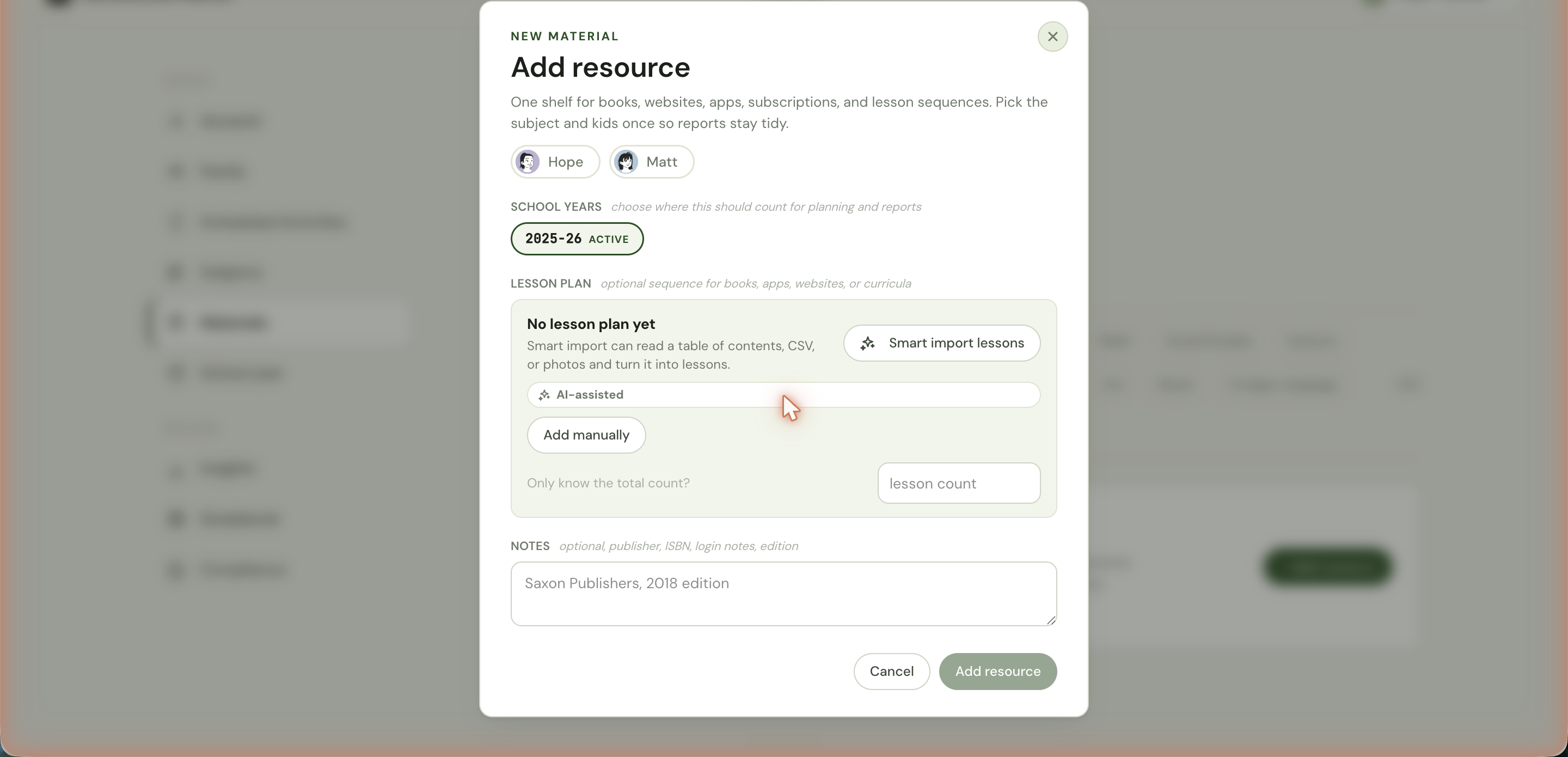
The child pills under Use in planning assign the material to specific children. Skip them and the material is library-only — it’s saved but doesn’t appear in planner views or count on reports. The hint reads library-only resources stay off reports until assigned. Use library-only for things you’re collecting (next year’s curriculum, optional reading, supplies you haven’t unboxed yet).
School years picks which year(s) the material counts for. The active year is marked with an Active chip; planning years (set up under School year) show alongside. Materials assigned to a year show in that year’s planner and reports — which means a workbook shared between this year and next gets tagged to both, and counts in both.
Lesson plan (optional)
If the material has a sequence of lessons — chapters, units, problem sets — you can attach the plan now or later. Three paths:
- Smart import lessons (AI-assisted) — pasted table of contents, CSV, or a phone photo of the contents pages gets read into a list of lessons. The full walkthrough is in importing a curriculum. This is the fastest path for any curriculum with more than 20 lessons.
- Add manually — type lessons in by hand. Good for short lists (under twenty), or when you only know the next few lessons and will fill in the rest as you go.
- Lesson count only — if you only know the total (e.g., “this curriculum has 36 weeks”), enter a number. The planner uses this for compliance hour estimates without forcing you to enumerate every lesson.
A material without a lesson plan still works — you just won’t be able to track Lesson 7 done, Lesson 8 next. For shelf-only references and supplies, no plan is fine.
Notes
Optional free text. Use it for the publisher, ISBN, edition, login URL, password hint (don’t store actual passwords here — see data and privacy), or anything else you’d want to look up later. The notes field is searchable from the materials list, so a publisher name or curriculum series in the notes makes the material findable later.
Click Add resource to save. It appears in the list, filterable by subject and searchable by name.
Editing or removing
Each material card on the list has Edit and Remove. Editing reopens the same dialog with values pre-filled — useful when you finish one curriculum and want to update the lesson plan to reflect actual lessons completed.
Removing it leaves any sessions that referenced it intact (so historical work stays correct), but nothing new can be linked to it. The deleted material disappears from the list immediately; sessions that used to reference it now show without a material link, but the session data is preserved.
What materials connect to
Once a material exists in the planner, you can:
- Reference it on a scheduled activity — the dialog has a Start from a resource option that pre-fills subject and children
- Reference it on a one-off activity from the day or week view, with the same Start from a resource shortcut
- Track per-lesson progress if you imported or added a sequence — Lesson 47 of 120 shows on the material card, and the next-lesson hint shows on relevant sessions
- Roll it up in compliance reports as the source for that subject’s instruction, with publisher and edition included automatically
The deeper you tag materials (subject, child, year, lesson plan, notes), the more useful the rollup gets.
Common patterns
A few patterns parents tend to develop after a year:
One material per curriculum, not per book
For a multi-volume curriculum (e.g., Tapestry of Grace with separate teacher’s manual, student book, and primary readings), some parents create a single material titled by the year (Tapestry of Grace Year 3) with notes describing the components, rather than three separate materials. Less clutter, equally useful for reports.
Library-only for the wishlist
Books your child might read this year but you haven’t committed to scheduling get added with no children assigned (library-only). They show up in the materials list as available references but don’t count anywhere until you assign them.
Edit, don’t recreate, when a curriculum carries over
If you used Saxon Math 5/4 last year and the same child is using Saxon Math 6/5 this year, edit the existing material to update the name and lesson plan rather than creating a new one. The previous year’s sessions stay linked through history; the current year picks up from the new lesson list.