The day view
How the day view works in Homeschool Planner. A focused list of today's blocks, per-child filters, the activity detail drawer with tasks and voice notes, and the bump-to-tomorrow shortcut.
The day view is Homeschool Planner’s narrow lens — one date at a time, a checklist of every block scheduled for it, and the controls to mark work done, move it to tomorrow, or capture a quick note about how it went. If the week view is for planning, the day view is for doing. Most parents land on the day view first thing in the morning, glance through the day’s plan, and return to it through the day to check things off.
At a glance
- Where it lives: Day toggle in the planner top bar (or
Don the keyboard, or/day?date=…) - What it does: lists today’s planned blocks with check circles, plus the activity detail panel
- Best for: running the day, marking work complete, capturing voice notes
- Skip if: you’re planning ahead — the week view is the planning lens
The header
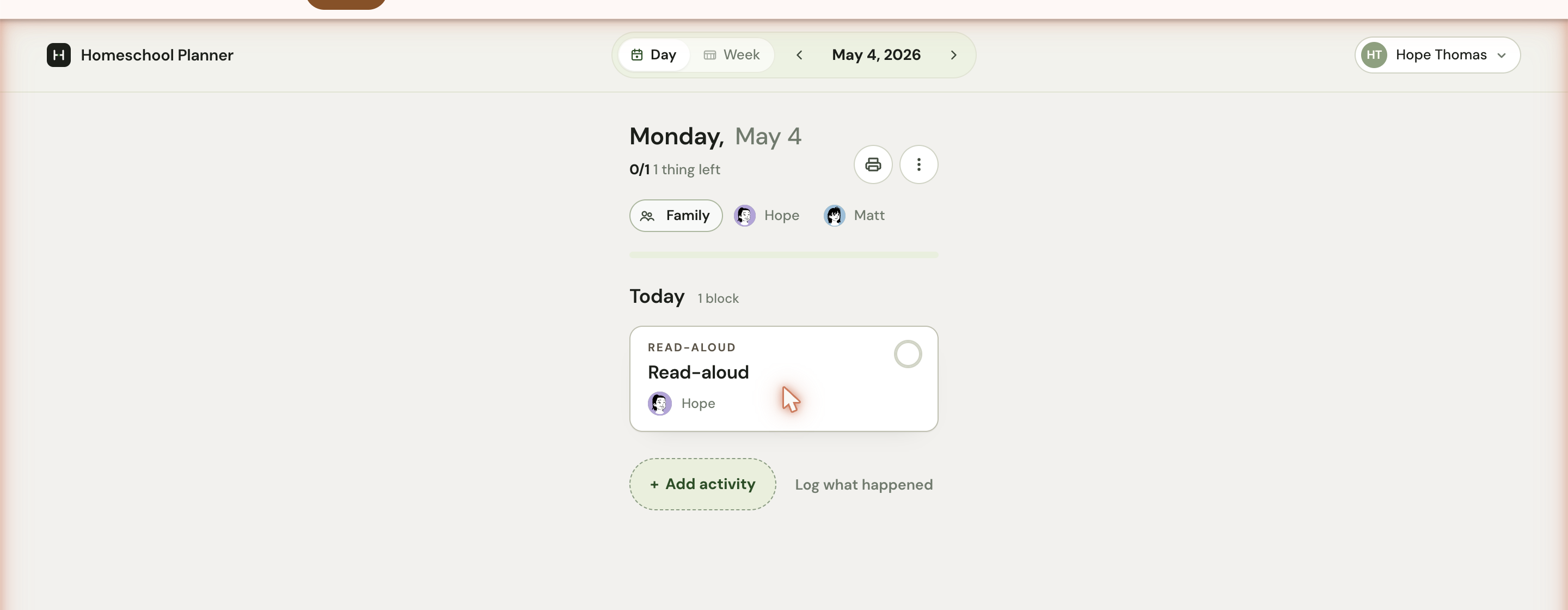
The big heading is the date — Monday, May 4. The year is implied (the active school year). Below it, a status line counts the day’s blocks: 0/1 1 thing left, 2/3 1 thing left, 3/3 done. The numbers update as you check items off.
To the right of the heading sit two small icons:
- A print icon — opens the day in a print-friendly layout. Good for handing the child a one-pager of what to do today.
- A three-dot overflow menu — currently exposes one action: Bump pending to next day (Move N pending session(s) to the next school day.) Useful when a sick day pushes work forward without losing it.
The day filter chips below the heading are the same per-child pattern as the week view. Family shows everyone’s blocks; clicking a child avatar narrows the list to that child’s lane only. The thin bar under the chips is the day’s progress, the same number as the status line, in visual form.
The block list
The Today section lists every block on the date in order. Each block card shows:
- The subject in small caps as a label (
READ-ALOUD,MATH,SCIENCE) - The activity title
- The children it’s for (one avatar per child)
- A check circle on the right
Click the circle to mark the block complete inline — the card stays in place but dims, the status updates, and any associated tasks tick off. Click the card body (anywhere except the circle) to open the activity detail panel for the full edit/log experience.
Below the list, two ways to add more:
- + Add activity — opens the same Add dialog as elsewhere, pre-filled for today. Use this for one-off blocks that aren’t part of a scheduled activity.
- Log what happened — opens a slightly different dialog tuned for retroactively recording work that’s already done. See logging completed work.
The activity detail panel
Clicking a block opens a side panel with everything about that one block.
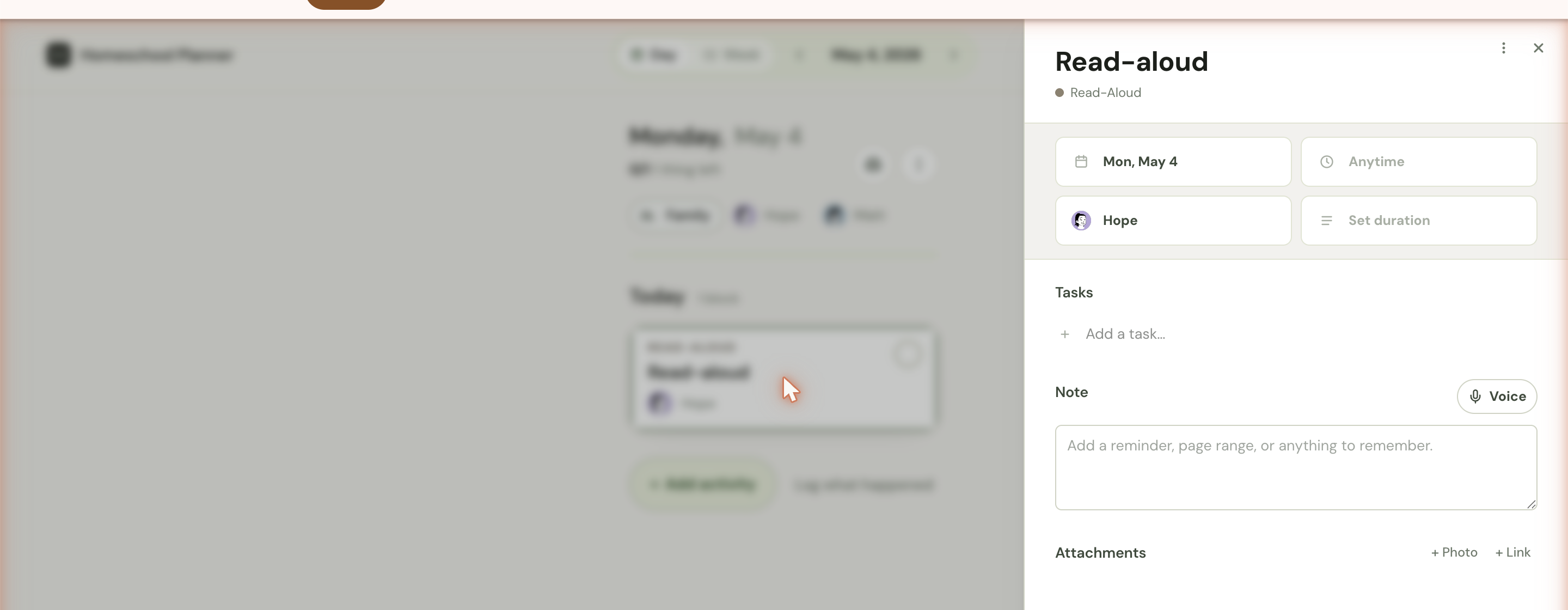
The panel has four areas. Each is independent — you can change one without affecting others.
Metadata pills
Date, time-of-day, child, duration. Click any pill to change it. Anytime sorts the block to the bottom of the list; setting a real time slots it in chronologically with the rest of the day. Changing the child reassigns the block — the original child loses it, the new one gains it.
Tasks
Default tasks from the scheduled activity (if any) appear here as a checklist. + Add a task lets you add ad-hoc items for this single block — Quiz at the end, Print pages 14–18, Submit on the portal. Checking a task off doesn’t complete the whole block; clicking Mark complete at the bottom does. Tasks are useful for breaking a block into sub-steps a child can work through independently.
Note
Free text. Add a reminder, page range, or anything to remember. Visible on the block card afterwards as a small note indicator. Common uses:
- A page range: “Pages 47–51, skip the bonus problems”
- A reminder: “Bring the magnifying glass for the lab”
- A reaction: “Hope nailed the multiplication tables today”
The Voice button next to Note lets you dictate the note instead of typing — useful for talking through what your child actually did when you log retroactively. Speech is transcribed inline. See voice capture for details.
Attachments
+ Photo uploads an image — a finished worksheet, a craft project, a screenshot of a quiz. + Link stores a URL — a reference, an answer key, an article you read together. Attachments stay on the block forever (they’re not deleted when sessions are removed), so they form a small archive of what your child actually did this year.
Mark complete
The full-width green button at the bottom checks the block off and dims it. The block stays on the day but counts toward the N done tally on the day stat line. Marking complete here behaves identically to clicking the small check circle on the block card.
Bumping pending work
Some days don’t go to plan. The three-dot menu → Bump pending to next day moves every uncompleted block from today to the next school day. The menu shows the count: Move 1 pending session to the next school day.
Bumping doesn’t lose work — completed and partially-completed blocks stay on the original date. Only pending blocks (no work logged at all) move forward. So a day where your child completed math and reading but skipped science would bump only the science block; the math and reading stay on today.
Per-child focus
The day filter chips give you a single-child view of the day. This matters when:
- One child finished early and you want to scan only the other child’s remaining work
- You’re sitting with one child and want a clean list without the visual clutter of siblings’ blocks
- You’re printing a single child’s day sheet (filter first, then print)
Click a child avatar to focus; click again to return to the family view. Keyboard shortcut: there isn’t one for the filter chips, but the Family/per-child state is sticky for the session.
Day view vs. week view
The day view and the week view are two ways to look at the same data:
- Week — five (or seven) days at a glance, a child-by-day grid, planning emphasis
- Day — one day, list, doing emphasis
The keyboard shortcuts D and W flip between them; the date pill in the top bar tracks across both. Most parents use the week view on Sunday night to plan, then the day view through the week to execute.
The empty state
A day with nothing scheduled shows Nothing planned for today. with two buttons: Plan activity (which opens the Add an activity dialog) and Log activity (which opens the Log what happened dialog). This is what you’ll see on weekends if you haven’t enabled them in the school year, or on days inside a vacation, or on a day before you’ve set up scheduled activities.
The empty state is also a useful entry point — if you want to add a single block to a day that doesn’t have anything else planned, Plan activity is the fastest path.