
Subjects and state requirements
How subject enrollment works in Homeschool Planner. Required vs. Optional vs. Off, per child, with state-law requirements auto-flagged based on grade.
Subjects in Homeschool Planner are per child, not per family. Each child has their own enrollment matrix — Required, Optional, or Off — that decides which subjects appear in their planner, their gradebook, and their compliance reports. The eleven available subjects are the same for every family; what differs is which ones each child is enrolled in this year and at what level. This page covers the matrix, where state requirements come from, and how to change either.
At a glance
- Where it lives: Settings → Subjects (also reachable from Manage subjects on the Family page)
- What it does: sets each child’s per-subject enrollment (Required / Optional / Off)
- Best for: start-of-year setup, mid-year drops, adjusting after a state change
- Skip if: state-law defaults already match what each child is doing
The child switcher
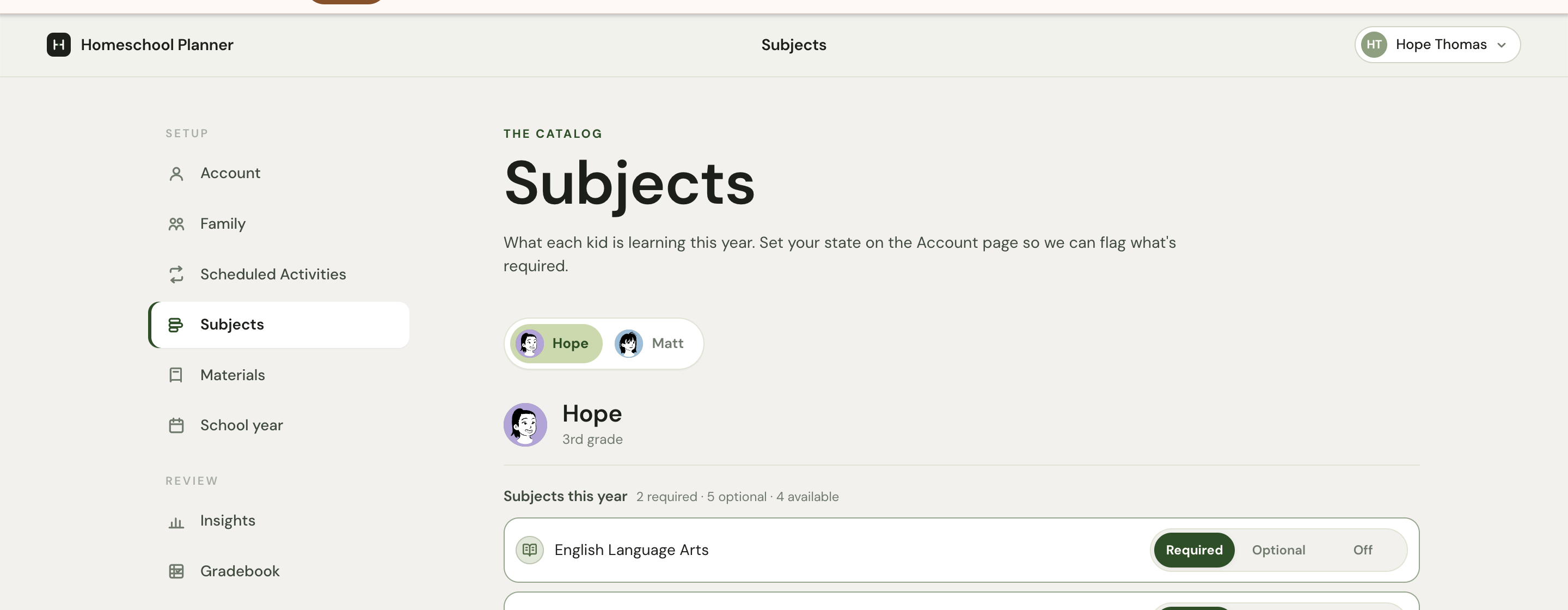
The pills under the page heading are your children. Click one to switch the matrix to that child. Each child sees the same eleven subjects, but with their own pattern of Required, Optional, and Off — so a 9-year-old’s matrix and a 16-year-old’s matrix usually look very different.
The block below the switcher shows the active child’s avatar, name, and grade. The counter line — Subjects this year: 2 required · 5 optional · 4 available — tells you how the matrix is currently set:
- Required — the child is enrolled and the subject is treated as compulsory for compliance reports
- Optional — the child is enrolled but the subject is elective
- Available — the subject is currently Off but available to turn on
The total of the three numbers always equals 11 (the size of the subject catalogue).
The three states
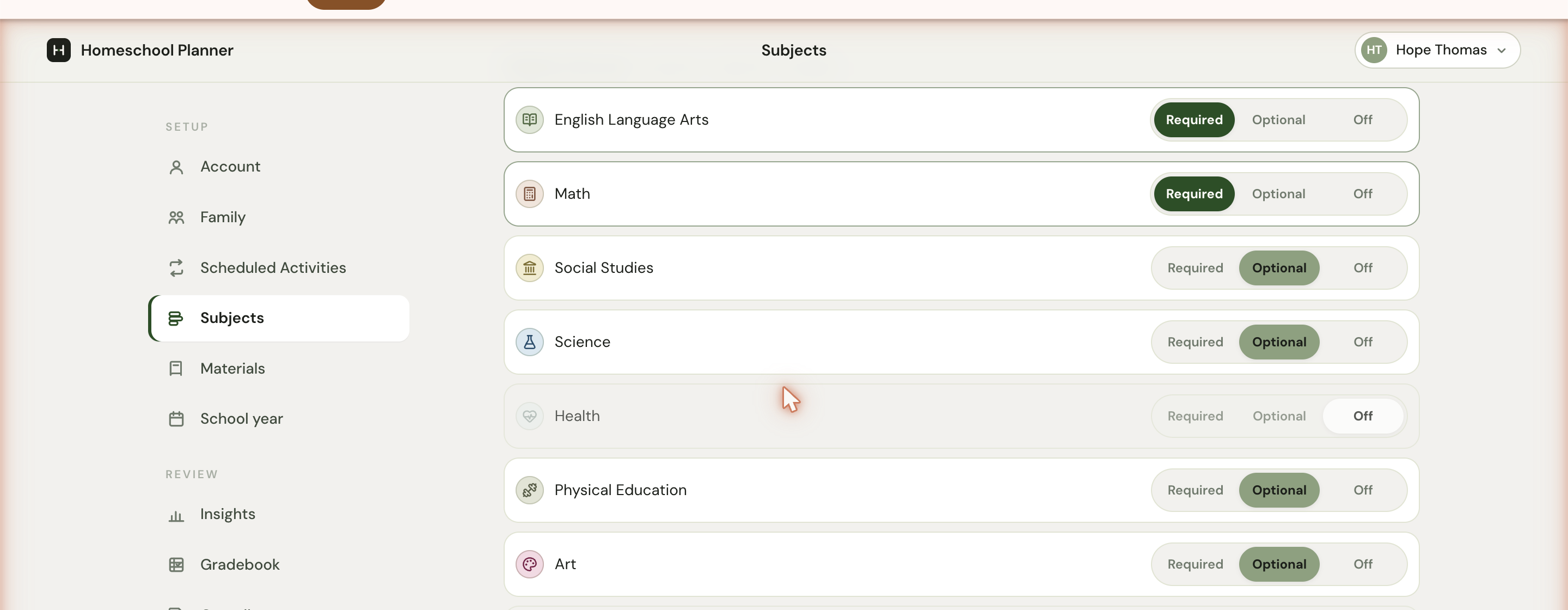
Each subject row has a three-way toggle on the right. Pick whichever fits the child’s year:
- Required — the child is enrolled, and the subject is treated as compulsory for compliance reports. State-law requirements for the child’s grade default to Required.
- Optional — the child is enrolled, the subject shows up in the planner and gradebook, but it isn’t tagged as required for compliance. Use this for elective work like Art or Music in states where those aren’t required by law.
- Off — the subject is hidden for this child. Off rows are dimmed in the list and don’t show in the child’s planner or filter chips.
State-law requirements
When you set your state on Settings → Family, Homeschool Planner reads the law for that state and the child’s grade and pre-fills which subjects start out as Required — the rest fall to Optional or Off based on common defaults.
States vary widely:
- High-requirement states — New York, Pennsylvania, Massachusetts, North Carolina, Ohio, and a handful of others have specific subject lists by grade. Expect 5-7 required subjects per grade.
- Permissive states — Texas, Idaho, and Indiana ask for very little. The auto-required set is a baseline of ELA + Math, with the rest left to you.
- In-between states — most states sit somewhere between these extremes. Expect 2-4 required subjects.
Setting state to Pick your state… (the default) means no state-tailored requirements; you’ll get a permissive baseline that you can adjust manually.
Changing a child’s enrollment
Click any segment — Required, Optional, or Off — to switch. The change saves immediately; there’s no Save button to confirm. The counter line at the top of the page updates with the new totals.
Toggling a subject Off doesn’t delete the child’s history for that subject. Past sessions, completed work, and gradebook entries stay; the subject just stops showing in the planner. Switching back to Required or Optional brings them all back into view.
What changes when you toggle
Toggling a subject to Required or Optional for a child:
- Adds it to the child’s planner views (week and day)
- Lets you assign scheduled activities to that subject for that child
- Includes it in the child’s gradebook tabs (when Gradebook ships)
- Counts it on compliance reports if Required
Toggling a subject to Off for a child:
- Hides it from the child’s planner views
- Stops it from showing in scheduled-activity setup for that child
- Removes it from the gradebook tabs
- Drops it from compliance reports
Sessions you’ve already logged for that subject aren’t deleted — they’re hidden until the subject is on again. So if a child takes a semester off from Foreign Language, you can toggle Foreign Language to Off without losing any of the work they did the previous semester.
Subjects vs. activities
A common point of confusion early on:
- A subject is a category — Math, Science, Art. There are eleven, fixed.
- An activity is a specific thing inside a subject — Saxon 3 lesson 47, Magic School Bus episode 2, Painting in the park.
You don’t add new subjects; you add activities and tag them with one of the eleven. If the eleven don’t fit something, Other is the catch-all — name the activity Computer programming, Latin, Mythology, and tag it Other. The activity title is what shows on the card; the subject just colours and groups it.
This is intentional: states regulate subjects, not activities. By keeping the subject list fixed, compliance reports always have a stable category to roll up under, regardless of which curriculum you used or what you called each lesson.
Editing the eleven
The eleven subjects (English Language Arts, Math, Social Studies, Science, Health, Physical Education, Art, Music, Foreign Language, Read-Aloud, Other) are fixed by the planner — they map to most US state curriculum frameworks and to common homeschool taxonomies. You can’t add a twelfth or rename one of them.
This sometimes feels limiting, especially for families teaching specialty subjects (Latin, computer science, cooking, life skills). The recommended pattern is to use Other for any subject not on the list, with the activity title carrying the specifics: “Computer programming — Python intro”, “Latin — Henle Lesson 4”. Reports group by the eleven, but they show the full activity titles.
If a state requires a subject by a different name (for example, American Sign Language as a foreign language requirement), tag it as Foreign Language and use the activity title to specify. Compliance reports note both.
Multi-year planning
The matrix is per-year, but the planner remembers history. If you set a child’s Foreign Language to Optional in 9th grade and Required in 10th, the 9th-grade sessions stay tagged Optional in reports, and 10th-grade sessions count as Required. The history is honest about what each year looked like, even if your decisions changed.