
Printing the planner
Print a clean weekly or daily sheet from Homeschool Planner. Filter by child, hide done sessions, save as PDF.
Some weeks the planner is at its best on the fridge, not on a screen. The print icon in both the week and day topbars opens a clean printable sheet — landscape grid for the week, single-page checklist for the day. The same flow saves as PDF if you’d rather keep it digital. Until the Compliance view ships, printed sheets are also the easiest paper trail for state requirements.
At a glance
- Where it lives: print icon in the week and day topbars (or
/week/printand/day/printdirectly) - What it does: clean printable layouts with optional filters
- Best for: children who like a paper checklist, fridge-mounted week views, state paperwork
- Skip if: your homeschool is fully digital and you don’t need physical sheets
The week sheet
The week print preview is a landscape table — children as rows, weekdays as columns, scheduled blocks as cards inside each cell. The toolbar at the top of the preview lets you tune the sheet before sending it to the printer:
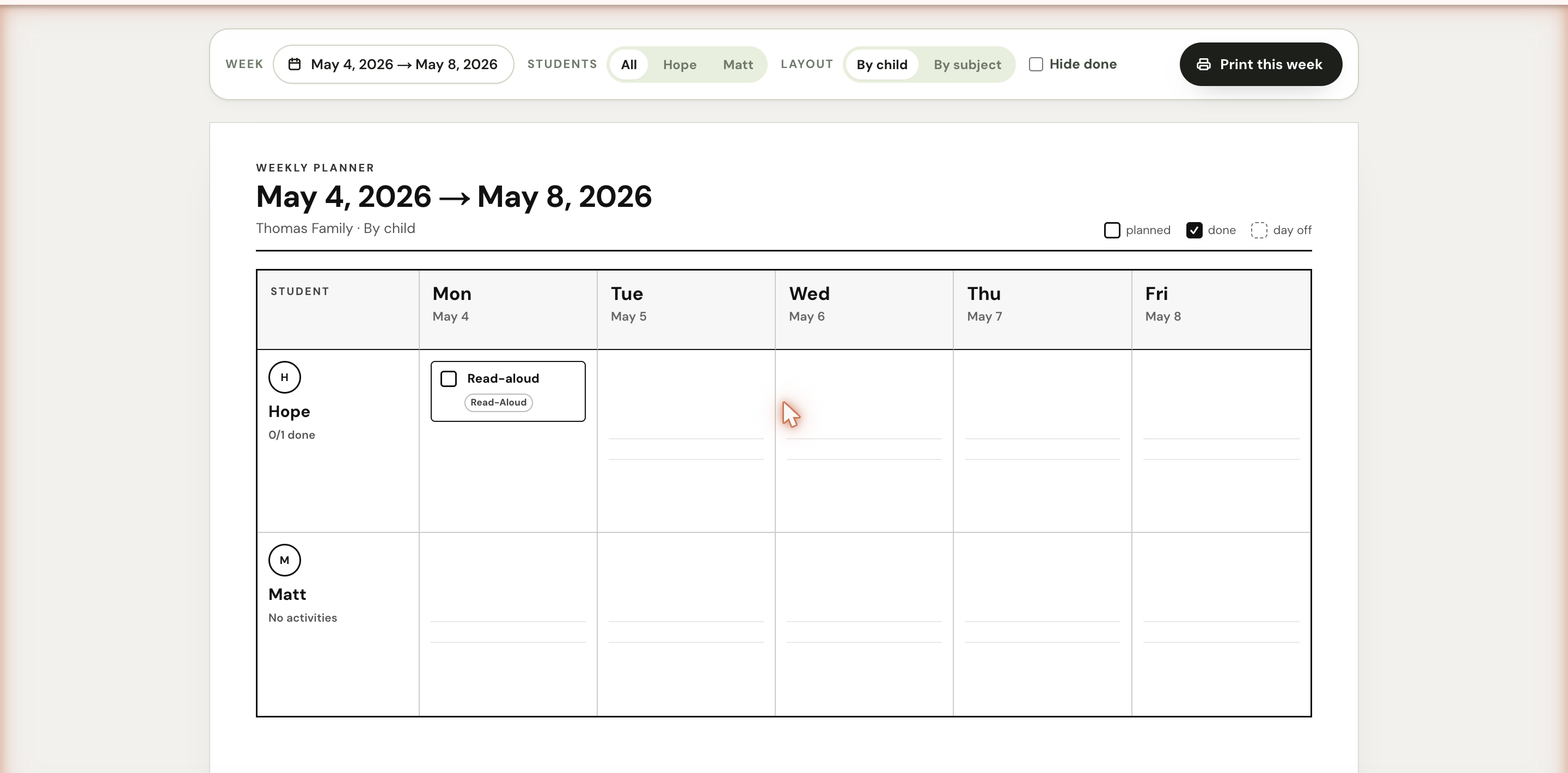
- Date range — click the date pill to step the week forward or back. The arrows on either side move one week at a time.
- Students — All shows every assigned child as their own row, or pick a single child to print just their week.
- Layout — By child puts children on the left side, weekdays across. By subject flips it so each subject is its own row across the family.
- Hide done — strip out checked-off blocks so the sheet only shows what’s still to do. Useful for a fresh weekly start.
- Print this week — the button at the right that triggers your browser’s print dialog.
A small legend at the top right of the heading area marks the three states a cell can be in: planned (empty box), done (checked), day off (dashed outline).
The day sheet
The day print preview is a portrait checklist designed to be a single-page sheet a child can hold and tick through. Children are section headers; each scheduled block is a row with a checkbox, the subject dot, and the activity name. Activities marked Anytime sort to the bottom; activities with a time appear in chronological order.
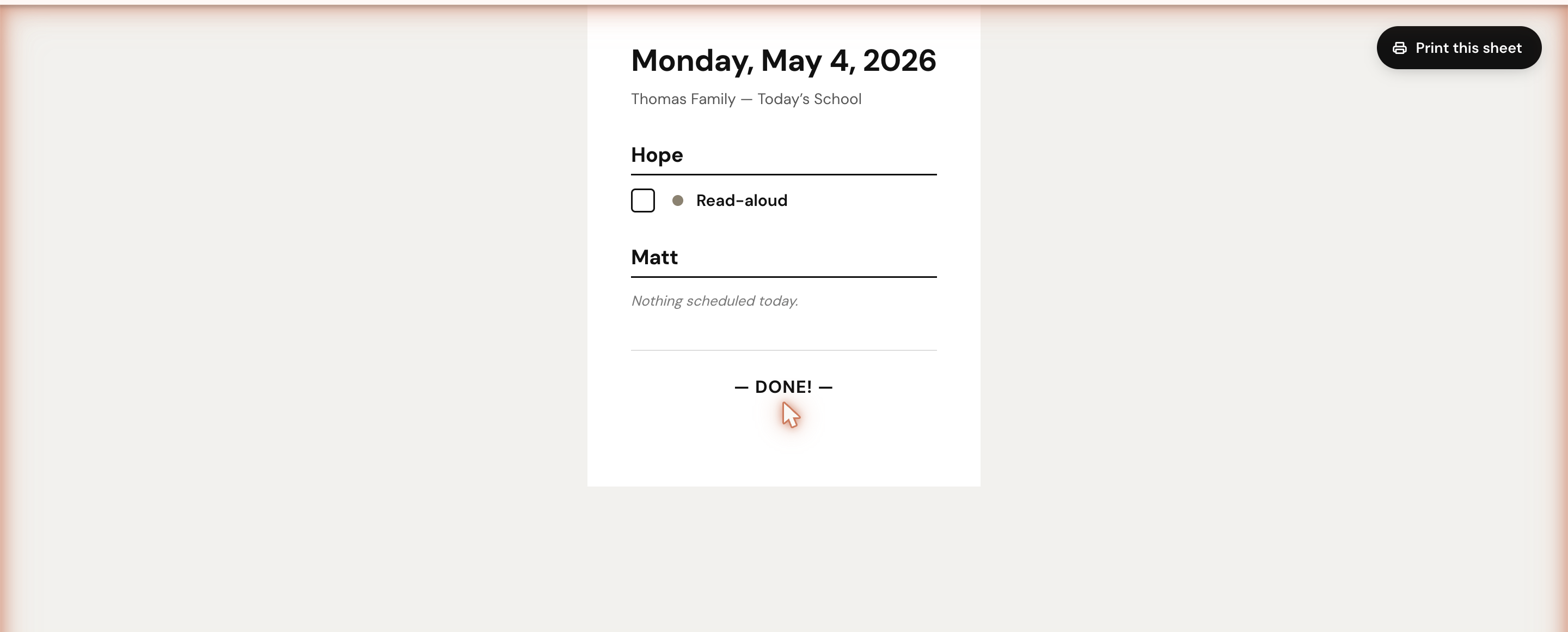
The day sheet is intentionally minimal — it doesn’t expose layout or filter controls because the day view’s filter chips already let you narrow by child before clicking print. If you only want one child’s sheet for the day, filter to that child first, then print.
The closing — DONE! — marker is a small celebration when the last item gets checked. Surprisingly motivating for younger children.
Saving as a PDF
Printing and saving as a PDF use the same path. Open /week/print or /day/print?date=…, click the print button, and choose Save as PDF as the destination in your browser’s print dialog. That’s the simplest export today.
PDFs are useful for:
- Emailing a sheet to a co-op teacher or tutor before a session
- Keeping a record of what was scheduled (separate from what was actually done)
- Building a year-end portfolio of weekly summaries
- Sharing the week’s plan with a spouse or grandparent who doesn’t use the app
For multi-week PDF batches (every week of the year, for example), repeat per week. A bulk PDF export is on the roadmap.
Browser print settings
Both sheets are designed for letter-size paper, portrait for the day, landscape for the week. In your browser’s print dialog:
- Set paper size to Letter (or A4 — both fit cleanly).
- Set orientation to Portrait for day, Landscape for week. Most browsers detect this automatically from the page CSS.
- Turn off Headers and footers so your browser doesn’t add the URL and date along the top and bottom margin.
- Background graphics can stay on or off. Keep them on if you want the children’s color swatches and subject dots to print; turn off to save toner.
Workaround for compliance
Until the Compliance view (see reports and reviews) ships, printed weekly sheets are the closest thing to a state-compatible report. They show what was scheduled, what was completed, and the dates — which is what most state evaluators want to see.
A typical paper trail for a quarterly state submission:
- Print each week of the quarter (about 13 weeks).
- Save as PDF, combine into one document if your state wants it digitally.
- Add any standardized test scores or evaluator letters separately.
State requirements vary widely — New York wants a quarterly report with hours per subject, Texas wants nothing, most states sit in between. The week sheet is a sturdy starting point; some families add a typed cover summary to specific quarters.
What doesn’t print yet
Settings pages (subjects, materials, scheduled activities, school year) aren’t optimized for print. Your browser will print them, but the layout was designed for screens, not paper. For now, photograph or screenshot those pages if you need a hard copy — each one fits on a single screen, so a phone photo works.
A unified printable summary (everything on the account in one packet) is on the wish list. For now, the week sheet plus a few screenshots covers most paper needs.