
The school year
How the school year works in Homeschool Planner. Set start and end dates, choose school days, mark vacations, manage federal holidays, and plan next year.
The school year settings in Homeschool Planner control which dates your planner runs across, which days of the week count as school days, and which days are off (vacations and holidays). Get this right at the start of the year and the rest of the planner falls into line — instructional-day counts on compliance reports, week-view date ranges, scheduled-activity sessions, and pending sessions on vacation days all derive from here. Most parents set this up during the welcome flow and revisit it twice a year: once in spring to plan the next year, and once over winter break to adjust holidays.
At a glance
- Where it lives: Settings → School year
- What it does: sets the year’s dates, school days, vacations, and standard holidays
- Best for: start-of-year setup, mid-year vacation additions, planning next year in spring
- Skip if: the welcome flow already set the dates correctly and nothing has changed
Where to find it
Settings → School year in the sidebar.
The year overview
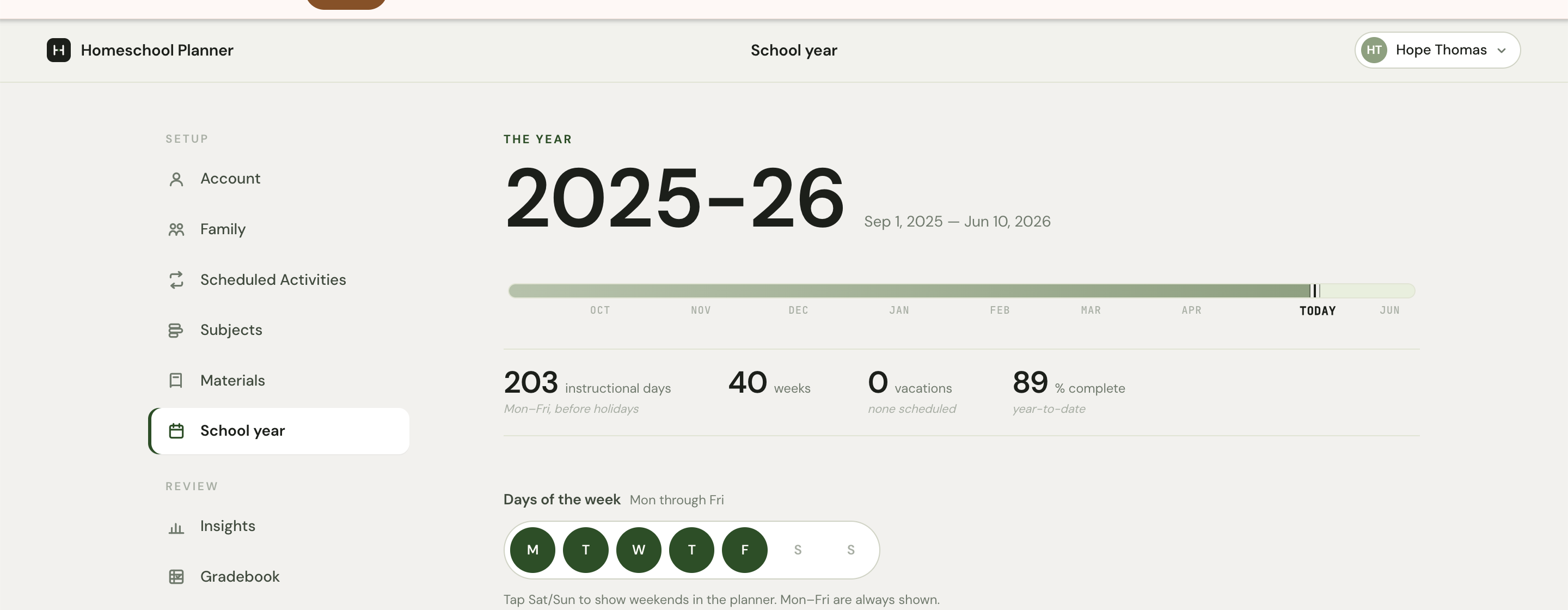
The big number at the top is the active school year. 2025-26 with the date range to its right — Sep 1, 2025 — Jun 10, 2026. That’s the range every other part of the planner reads from when it asks “what counts as this year?”
The progress bar below shows the year as a horizontal track with months as ticks. Today marks where you are in the year. The four stats below the bar are the year’s vital signs:
- Instructional days (Mon–Fri, before holidays) — the count without any vacations or holidays subtracted. For a typical Sep–Jun year, this is around 200.
- Weeks — calendar weeks across the range.
- Vacations (none scheduled) — climbs as you add them.
- % complete (year-to-date) — proportion of the year already past, not your work-completion rate. So in May, this reads around 89%.
The instructional-day count is what most state compliance reports want. Vacations and holidays you mark Day off trim it down on the report. A typical homeschool year that meets a 180-day requirement starts at 200 instructional days, then loses 11 federal holidays + 9 vacation days (Christmas, spring break, etc.) to land at 180.
Days of the week
By default, school is Mon through Fri. The day pills below the stats let you toggle Saturday and Sunday into the planner if your family runs school on weekends. Mon–Fri are always shown — the pills for those are decorative reminders, not toggles.
The hint reads Tap Sat/Sun to show weekends in the planner. Mon–Fri are always shown. Adding a weekend day shows it as a column in the week view, and lets you assign scheduled activities to it. Common reasons families add a Saturday:
- Co-op classes that meet weekends
- A specific subject (PE, music) that meets only on Saturday
- Catching up on a behind-schedule subject without affecting weekday flow
You can also add Saturday for a stretch of the year and remove it later — for example, enable it during a fall co-op semester, then disable for spring.
Multiple school years
The School years section below the stats is the year switcher.
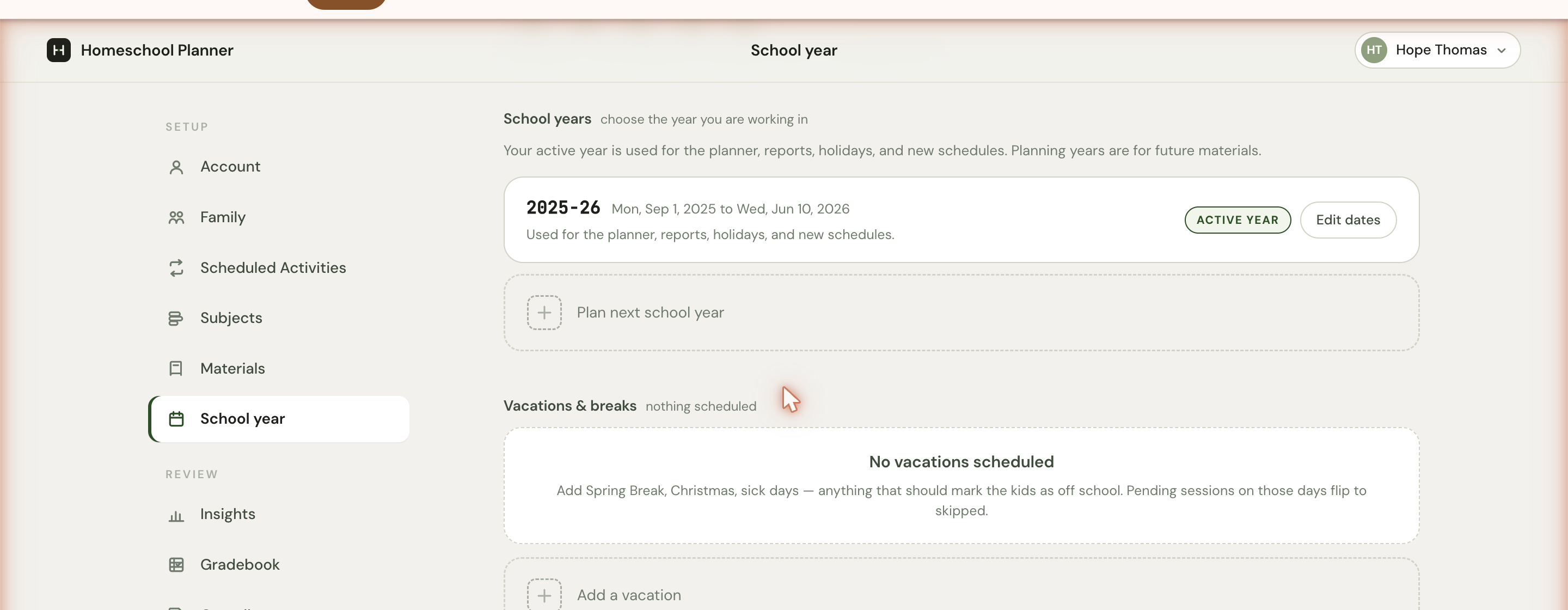
You can have one active year at a time — that’s the one the planner uses for views, reports, and new scheduled activities. The card shows the dates and a description: Used for the planner, reports, holidays, and new schedules.
Edit dates opens an inline editor for the active year’s start and end dates. + Plan next school year creates a new year — useful in spring when you’re choosing curriculum and dates for next fall, but don’t want it to take over the live planner yet. Planning years exist alongside the active year; only the active year drives day-to-day planning.
Vacations and breaks
The Vacations & breaks section is where you mark spring break, Christmas, sick days, family trips — anything that should count as time off school.
+ Add a vacation opens a small form for a name, start date, and end date. Once added:
- Days in the range disappear from the child×day grid (the cells stay but show On vacation)
- Pending sessions on those days flip to skipped — they won’t pile up as overdue
- The vacation count on the year stats climbs and the instructional-day count drops on compliance reports
Vacations don’t delete already-completed work. If you logged a session on a Tuesday and then later add a vacation that covers that Tuesday, the work stays on record; only future pending sessions are affected.
The empty state reads No vacations scheduled — Add Spring Break, Christmas, sick days — anything that should mark the children as off school. Pending sessions on those days flip to skipped.
A typical homeschool year has 4-8 vacations marked: a week at Thanksgiving, two weeks at Christmas, a week for spring break, occasional family trips, sick days. Some families also add “make-up day” vacations for parent illness or moving days.
Standard holidays
Below vacations is Standard holidays, a pre-loaded list of US federal holidays for the active year. Each row shows the holiday name, its date (computed from the year’s calendar), the rule (First Monday in September, etc.), and a Day off toggle.
The status counter at the section header reads 11/11 marked as days off — every holiday is on by default. Toggle one off for a holiday you school through (some families ignore Columbus Day or Indigenous Peoples’ Day, for example), or back on if you want it off.
Behaviour is identical to vacations: holiday days drop from the child×day grid, pending sessions flip to skipped, instructional-day counts adjust.
The federal holidays included are: Labor Day, Columbus Day, Veterans Day, Thanksgiving, Christmas Day, New Year’s Day, Martin Luther King Jr. Day, Presidents’ Day, Memorial Day, Juneteenth, Independence Day. State-specific holidays (e.g., Patriots’ Day in Massachusetts) aren’t in the default list — add them as vacations if you observe them.
Mid-year date changes
If the year’s dates need to change mid-year — a family circumstance shifts your start date, an early end is needed, you want to extend through summer — Edit dates handles it. A few things to know:
- Extending the year (later end date) doesn’t affect existing sessions. New dates fill with whatever scheduled activities are configured.
- Shortening the year (earlier end date) drops scheduled-activity sessions for the new out-of-range days. Already-logged work stays.
- Changing the start date is rare mid-year, but it works the same way — earlier sessions get added or dropped.
Most year-date changes happen in spring when you’re moving from active year to next year. The automatic flip handles that case; manual edits are for unusual circumstances.
What changes downstream
Anything that touches the active year reads from this page:
- The week view date stepper jumps to the next week inside the active year and skips out-of-range weeks
- Scheduled activities with the all year range expand across the active year’s start–end (minus vacations and holidays you marked off)
- Compliance reports count instructional days from the year minus everything off
- Materials assigned to a year only show in that year’s planner
- Weeks in the planner only render for dates inside the active year’s range
For most year-date changes, you don’t need to touch anything else — the planner picks up the change everywhere it matters automatically.
Multi-year families
A handful of patterns come up for families managing more than one active year (rare, but it happens):
Different children on different schedules
If one child is on a year-round schedule (June–May) and another follows traditional dates (Sep–Jun), the planner’s single-active-year model doesn’t fit cleanly. The recommended workaround is using one year that spans the longer range and marking both children’s vacations and breaks individually as vacations on that year.
Spring planning while finishing the current year
The Plan next school year button lets you set up curriculum and scheduled activities for next year while the current year is still active. The planning year sits in the year picker on materials and scheduled activities; its sessions don’t fire until you flip it active.