
Scheduled activities
Set up recurring activities in Homeschool Planner — Math, Read-aloud, Bible reading. Scheduled activities create a session per child per school day so your week fills itself.
Scheduled activities are how Homeschool Planner fills the week without you having to type Math five times every Sunday night. Each one is a recurring rhythm — Math, Read-aloud, Bible reading, Spanish, PE — and the planner stamps it onto every school day in its range, for every child you assigned, automatically. Scheduled activities are usually the first thing parents set up after adding their children, and they’re rarely changed mid-year. Set them up once, let them run, adjust at the end of the year.
At a glance
- Where it lives: Settings → Scheduled Activities
- What it does: creates recurring sessions across the school year for each child + day combination
- Best for: anything that recurs weekly — your weekly spine
- Skip if: you only have a few one-off blocks; the day view’s + Add activity is enough
Where to find them
Settings → Scheduled Activities in the sidebar (or the set up a scheduled activity → link from an empty week view). The page lists every recurring activity you’ve added, with + New activity at the top right and Edit / Delete controls per row.
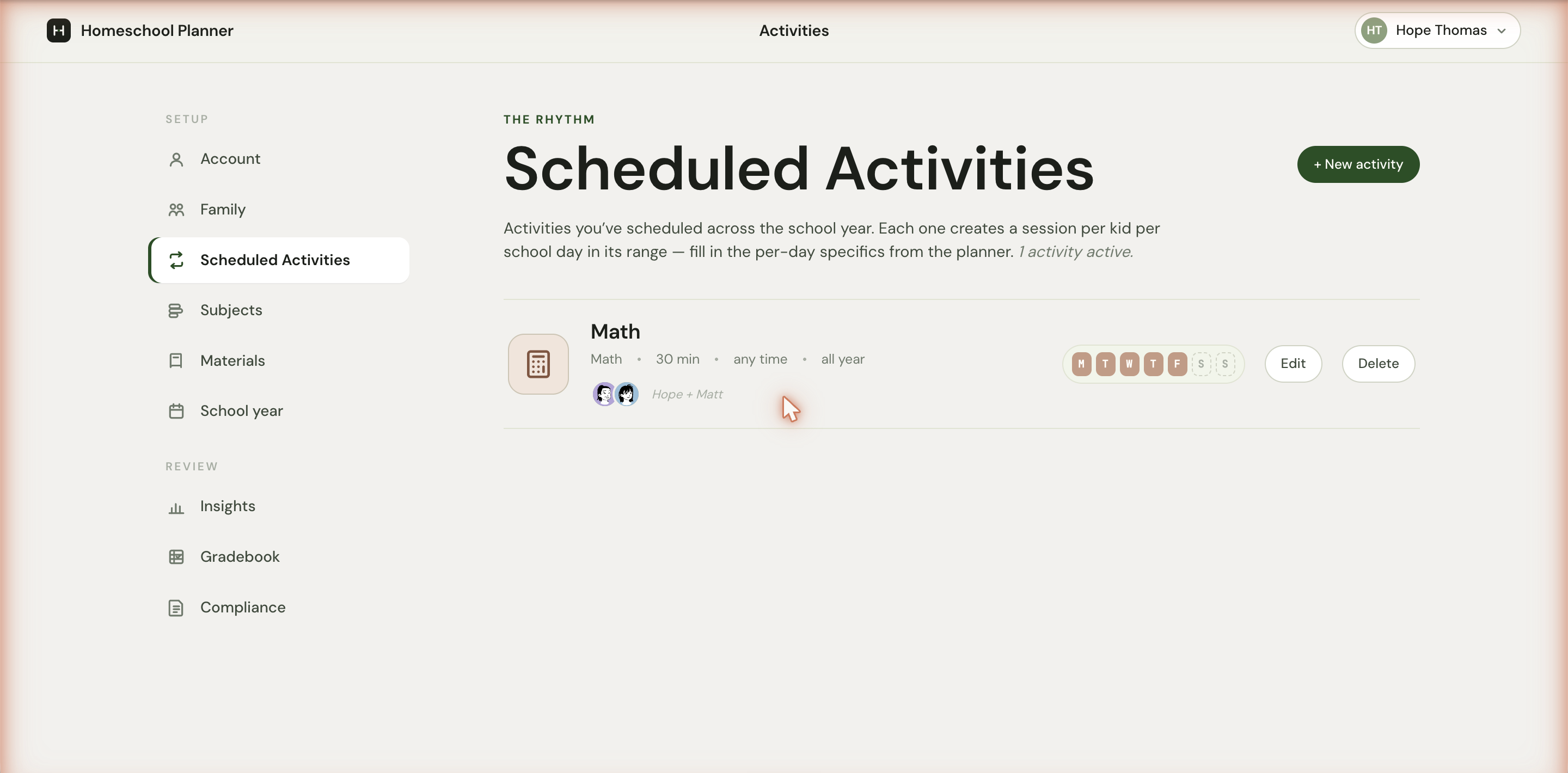
The status line under the page heading reads N activities active in italics — just a quick count, no action required.
Scheduled vs. one-off
The two ways to put something on the calendar work differently:
| Scheduled activity | One-off activity | |
|---|---|---|
| Recurrence | Every school day in a range | Single day |
| Where to add | Settings → Scheduled Activities | Day view, week cell, or A shortcut |
| Best for | Math, daily readings, weekly subjects | Field trips, make-up days, surprises |
| Lifetime | Set once at year start | Created on demand |
Most weeks, you set up scheduled activities once at the start of the year and rarely revisit them. The one-offs are the daily tweaks. A typical homeschool family has 5-10 scheduled activities running across the year and adds 1-3 one-off blocks per week.
Adding one
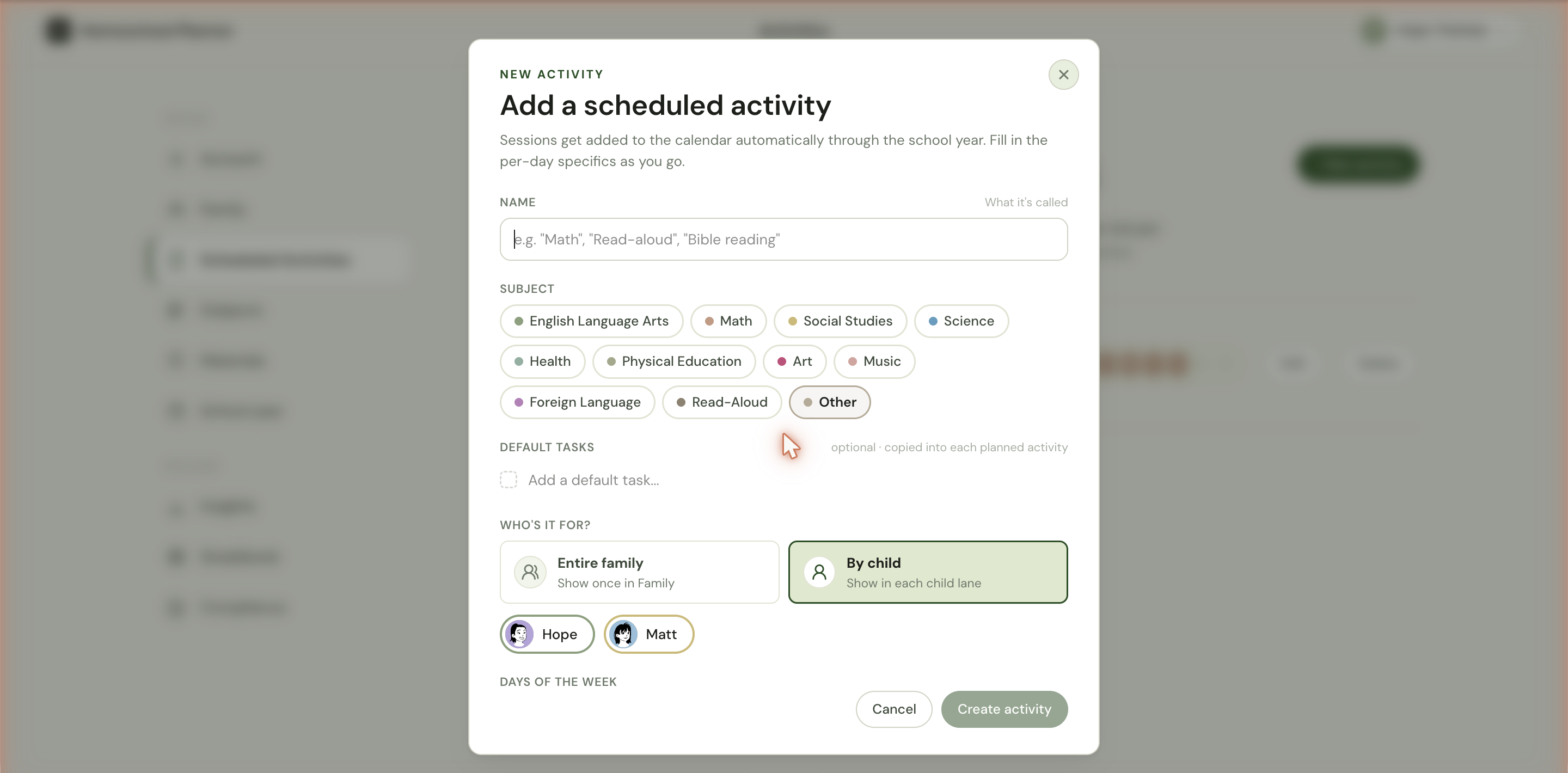
+ New activity opens the Add a scheduled activity dialog with this lede: Sessions get added to the calendar automatically through the school year. Fill in the per-day specifics as you go.
Name and subject
Name is what shows on the card in the planner — Math, Read-aloud, Bible reading. Keep it short. The subject already groups by topic, so you don’t need to repeat the topic in the name. “Math” is fine; “Math (Saxon)” is also fine if you want the publisher visible.
Subject picks the colour and the row it lands in when you flip to By subject. The options here are the full set: English Language Arts, Math, Social Studies, Science, Health, Physical Education, Art, Music, Foreign Language, Read-Aloud, Other. (One-off activities expose a shorter list; this longer one is what you’ll see in scheduled.)
Default tasks
Optional. Anything you add here gets copied into each session as a checklist item — useful for Read 20 min, Do problem set, Submit on Khan Academy, Take spelling quiz. You don’t have to use this; an activity with no default tasks is just a card you check off.
Default tasks shine for activities with multiple steps. Math might have Warmup, Main lesson, Problem set, Review missed problems. Reading might have Read aloud, Discuss, Vocabulary. The child sees these as a checklist on each session and can work through them independently.
Who’s it for?
- Entire family — the activity shows once on the family lane. Use this for read-aloud, family Bible time, group projects, family movie discussions, museum trips.
- By child — the activity creates a separate session for each child you select. The pills below let you turn individual children on or off.
By child is the right default for most subjects. Even if two children are doing the same curriculum at the same level, separate sessions per child means separate progress tracking, separate notes, separate completion timestamps.
Days of the week
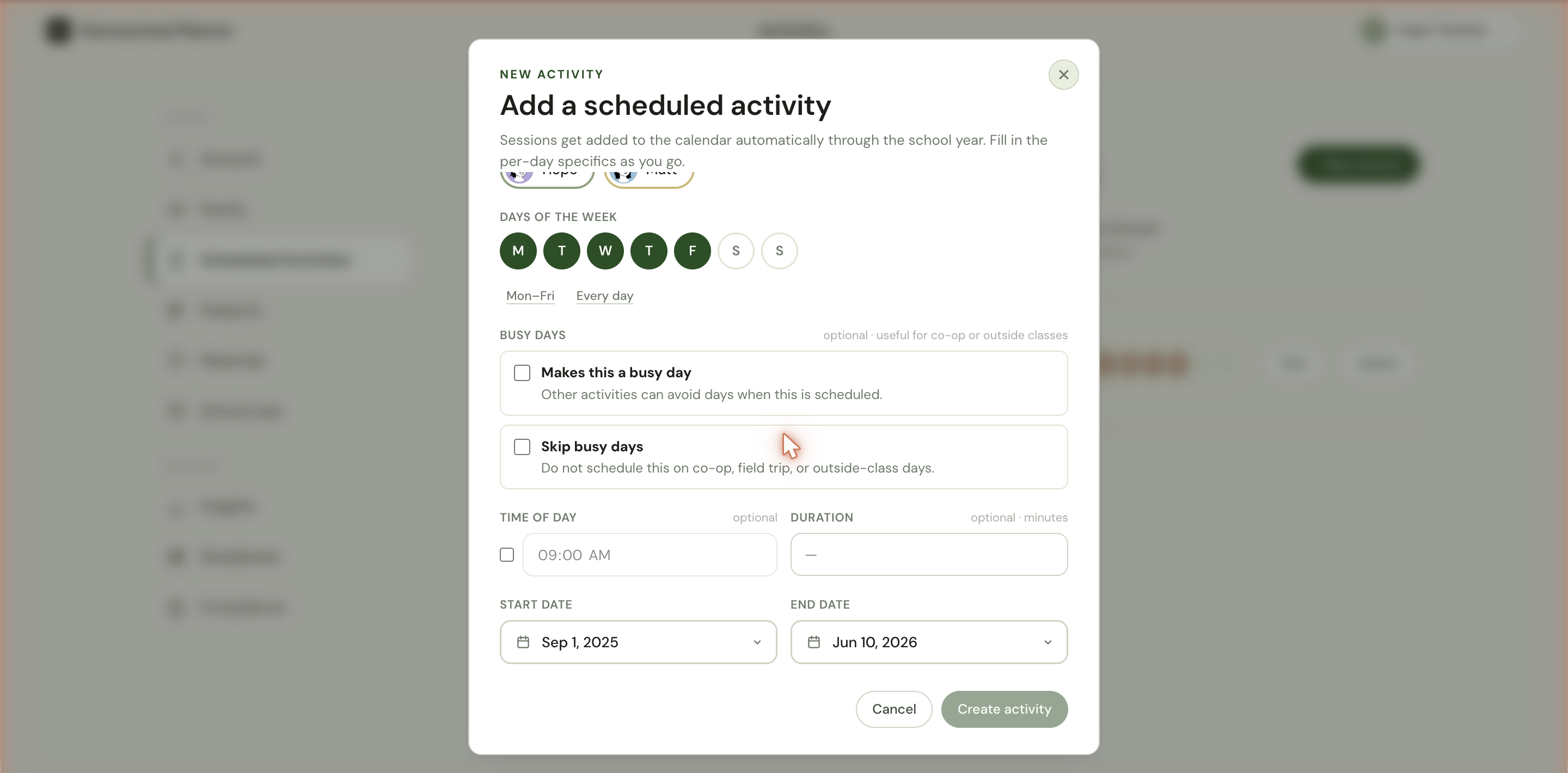
Click each day pill to toggle. The shortcut links — Mon–Fri, Every day — set common patterns in one click. Most subjects run Monday through Friday; some run only on specific days (Music — Tuesdays only, Science — Mon/Wed/Fri).
Busy days
Two checkboxes for handling co-op, field-trip, or outside-class commitments without breaking your weekly rhythm:
- Makes this a busy day — flag this activity as a busy commitment. Other activities can opt out of days where this is scheduled.
- Skip busy days — when this activity falls on a busy day (one flagged with the rule above), the planner doesn’t schedule it. Useful for at-home subjects like Math that you skip on co-op days.
Most regular subjects don’t need either box. Use them for outside classes (set the busy flag) and any subject you’d rather skip when the children are out (turn on skip).
A typical homeschool family with co-op on Wednesdays sets “Co-op” as a scheduled activity with the busy flag, then turns on Skip busy days on Math, Reading, and other at-home subjects. The result: Wednesdays show only the co-op block; Math doesn’t ghost-schedule on those days only to be skipped.
Time of day and duration
Both optional. Leave them blank and the activity reads any time in the list, with no duration. Set a time and it sorts to that slot in the day view; set a duration and the planner can total weekly minutes for compliance reports.
For most parents, neither field matters early on. Math, every weekday is enough. Add duration when you want to track minutes per subject for state reports; add time-of-day when you have multiple subjects and want them ordered chronologically in the day list.
Start and end date
Pre-filled with your active school year. Override either if the activity only runs for part of the year — Quarter-three swim, Spring-only co-op, Fall semester writing class. The dropdown points at any school year you’ve created.
Click Create activity to save. The card appears in the list, sessions appear on the calendar.
Editing or deleting
Edit on the list row reopens the dialog with all values pre-filled. Saving updates every future session. Past sessions you’ve already worked through are left alone — so if you change Math from 30 min to 45 min in March, the March-onwards sessions show 45 min, but January sessions still show 30 min.
Delete removes the rule and any unworked sessions in its range. Sessions you’ve already checked off or logged work on are kept — you don’t lose history.
How sessions show up
Once a scheduled activity exists in the active range, the week view fills out:
- In By child, each child you assigned gets a card on each scheduled day
- In By subject, the activity becomes its own row and the cards land in the child lanes inside it
- A card with default tasks shows them as a small checklist when you click in
- An empty week before any scheduled activity is added shows a single empty card with a link to set one up — see the week view for the empty-state behaviour
The cards aren’t read-only. Click any card to add tasks, attach a photo, take a voice note, or change the date — those edits affect that one session, not the underlying scheduled activity.
Common patterns
A few setups that come up often:
The five-subject baseline
Many families start with five scheduled activities — Math, Reading, Writing, Science, Social Studies — each running Mon–Fri, by-child. That covers the bulk of most state requirements and gives you a 25-session-per-week baseline. Add electives (Art, Music, Foreign Language) as separate scheduled activities if they recur, or as one-off blocks if they don’t.
The co-op rhythm
For families with a weekly co-op, the pattern is: one Co-op scheduled activity (entire family, busy flag on, the co-op day only), and then Skip busy days turned on for at-home subjects. This keeps the co-op day clean and prevents ghost-scheduling at-home work that gets skipped anyway.
Family read-aloud
Read-aloud is one of the few activities that’s almost always best as Entire family rather than By child. It’s one session, with multiple children listening — tagging it per-child creates duplicate noise on the planner. Entire family gives you one card on the family lane, one set of notes, one completion.